
Released 9/9/2026
Your next great idea has more places to go
- More control over the artwork you create. More ways to make the work you love useful.
- The first image is the beginning. The next change is where a design becomes yours.
- Meet the new Ultra Max experience in DesignGen beta: two ways to approach generation and editing, five detail levels, and saved versions you can return to as the work develops.
Introducing Ultra Max Signature
- Some projects ask more of the details. The lettering carries the whole design. An intricate illustration needs clearer shapes. A carefully chosen composition needs one thoughtful revision.
- Ultra Max Signature is the detail-focused mode for those assignments. Give it a clear brief, name what matters, and review the result against the design you intended to make.
- Choose Ultra Max for faster creative exploration. Try the composition, compare the palette, and find the direction worth developing.
- Both modes begin at Medium detail. Choose the approach that fits the request, not a setting you feel obligated to use for every project.
Five detail levels. A separate output-size choice.
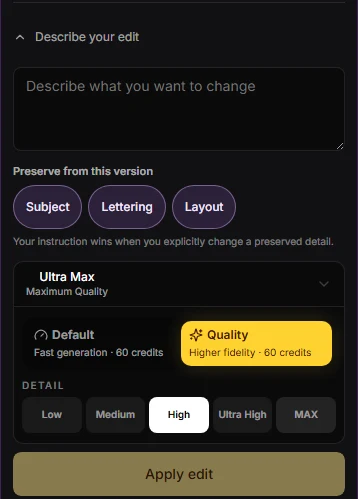
- Low, Medium, High, Ultra High, or MAX: you now have more control over the detail setting for each request.
- Output size remains a separate choice. UltraRes is the larger native-output option, not another name for MAX. It uses the available pixel budget, with dimensions depending on the artwork's proportions.
- See the final credit quote before submitting, and compare the actual result rather than assuming the highest setting always wins.
Make the change. Keep a way back.
- Open the selected design in Image Studio, choose Edit Image, and describe what should change. Use Subject, Lettering, and Layout preservation guidance for the details you want carried forward.
- “Make the lasso simpler. Keep the rider, wording, palette, and composition.”
- Compare the saved result with its source. Continue from the version you prefer, or restore an earlier favorite without generating a replacement just to get back.
- Preservation controls guide the image rather than lock pixels, so review the surrounding artwork too. The next version should earn its place.
See where your request stands
- Once the request is accepted, the tools close and the canvas shows whether the work is queued, generating, or saving.
- You can follow the stage without treating an animation as a promised finish time.
Give the artwork its next job
- Take the accepted illustration into a companion design. Prepare simplified source art through Vectorize and Edit Vectors in Vector Studio. Bring the approved product and facts into Creative Studio to plan a campaign, review its brief, develop copy, and export the images you actually want to use.
- These connected tools give the new Ultra Max workflow somewhere to continue. Your best idea does not have to stop at one image.
Start with a project worth finishing
- Signature and Ultra High detail are available on paid plans. MAX detail and UltraRes require Pro or Enterprise. The displayed quote is authoritative for the request you submit.
- Bring the client revision, the holiday collection, or the product that still needs its launch.
- Create the first asset. Make the next decision. Keep building from the work you chose.
- Create your version in Image Studio
- Explore the complete Ultra Max workflow