
Help CenterBrand Studio
Brand Studio
Managing Logo Assets and Generating Logo Variants
Updated March 19, 2026
4 min read
At a glance
| Topic | Details |
|---|---|
| Best for | Uploading logo files, keeping the right base mark, and generating missing variants from one source. |
| Start here | Open a brand, then scroll to the Logo Assets section in the notebook. |
| Outcome | A cleaner logo set the rest of the brand system can reuse. |
Open it now
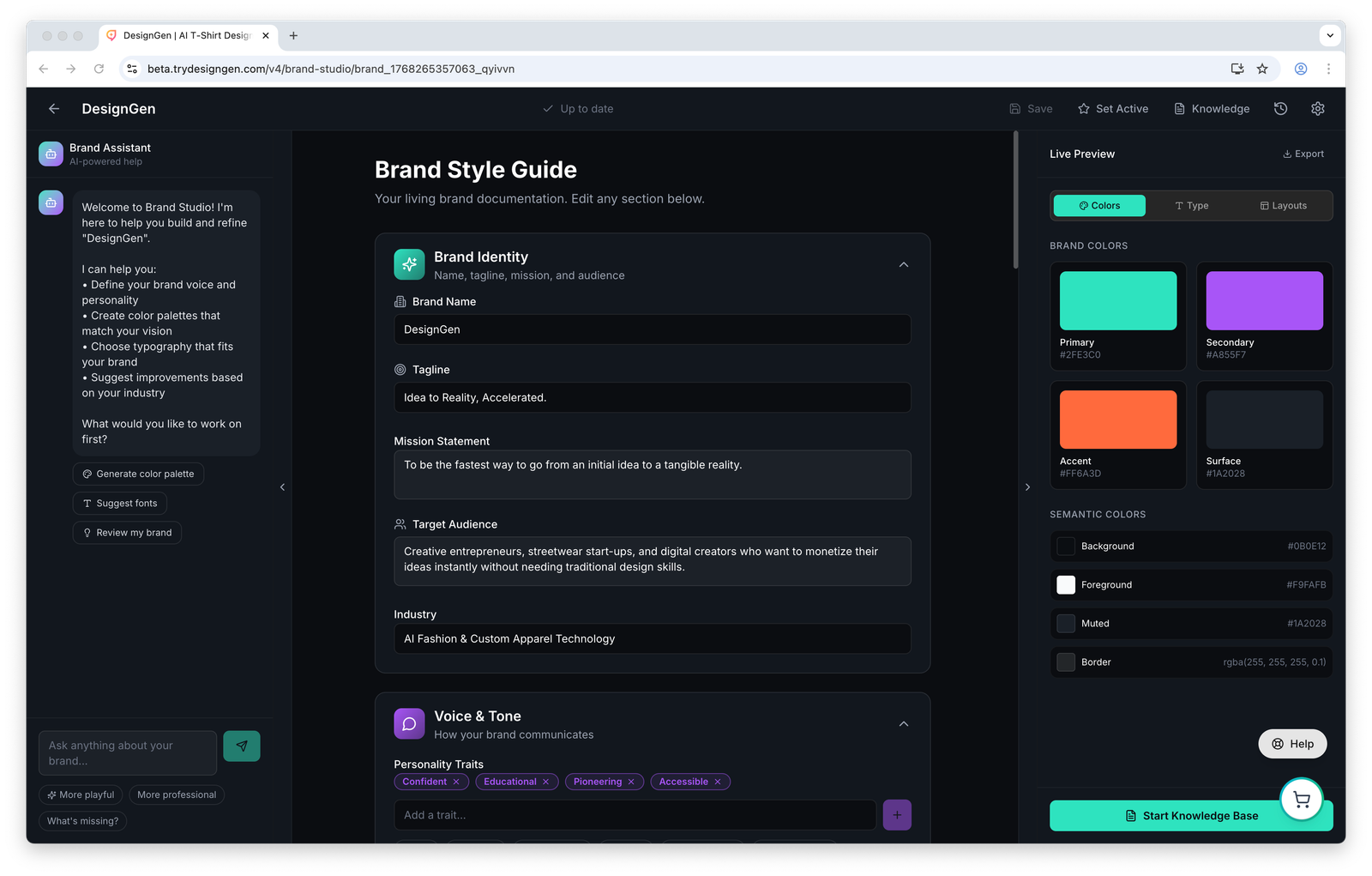
Logo work lives inside the main brand editor so it stays tied to the broader brand system.
Before you start
- Start with the cleanest logo file you have. Bad input produces bad variants.
- Variants are created from a selected base logo, not from thin air.
- Generated variants are saved back into the brand as assets after background removal and processing.
What the Logo Assets section does
- Upload logo files.
- Store and review existing logo assets.
- Choose a base logo for variant generation.
- Generate recommended variants from that base asset.
- Delete weak or outdated assets from the set.
File types and upload behavior
- The uploader accepts SVG, PNG, JPG, and WebP.
- The current limit shown in the UI is 10 MB per file.
- The gallery can hold up to 12 assets in the current editor.
- Uploads are analyzed automatically after they are added.
- The logo section can hold multiple files, not just one approved mark.
Recommended variant set
- Primary for the main full-color logo.
- Icon for a small app mark or symbol.
- Wordmark for text-only use.
- Monochrome for one-color applications.
How variant generation works
- Upload the cleanest logo file you have.
- Choose that file as the Base logo.
- Pick the missing variant you want to create.
- DesignGen generates the new asset, removes the background, and saves it back into the brand as a logo asset.
- Review the generated asset before you treat it as approved.
Best practice: Use the cleanest source you have. Variant generation is only as good as the base logo it starts from.
Recommended approval checklist
- Make sure the generated variant still looks like the same brand.
- Check that transparent areas are actually clean.
- Delete or recreate variants that are close, but not production-safe.
- Keep only the variants you have a real use for.
When to recreate a variant
- The base logo changed and the old variant is now outdated.
- The generated result is close but not clean enough for production.
- You uploaded a stronger source file and want a cleaner second pass.
Example: Preparing a logo set for marketing and product UI
- Upload the approved primary logo.
- Generate an icon for smaller placements.
- Generate a wordmark for space-constrained layouts.
- Generate a monochrome version for one-color use.
- Keep only the variants that solve a real use case.
Visual walkthrough
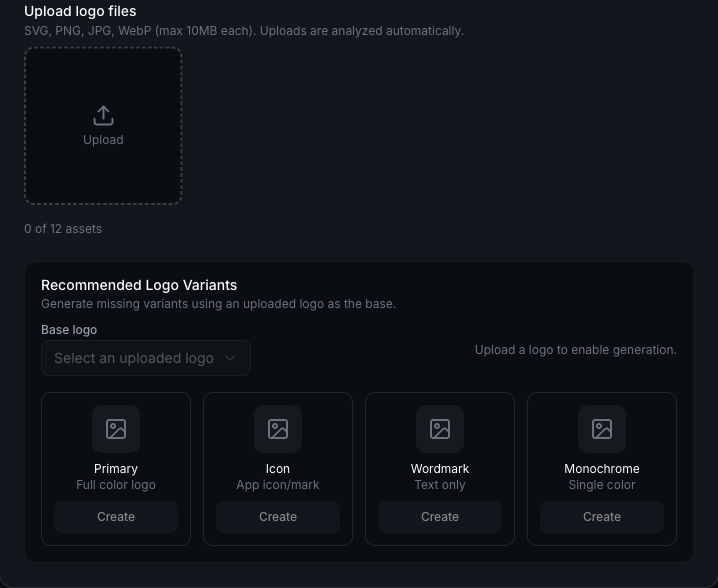
Use the Logo Assets section to upload base files first. Variant generation stays disabled until a source logo exists.
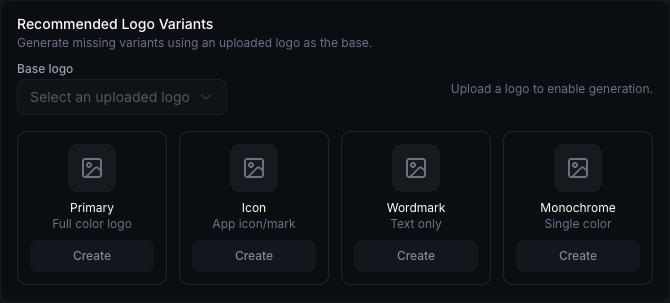
The recommended variants panel shows the output types you can generate once a base logo is available.
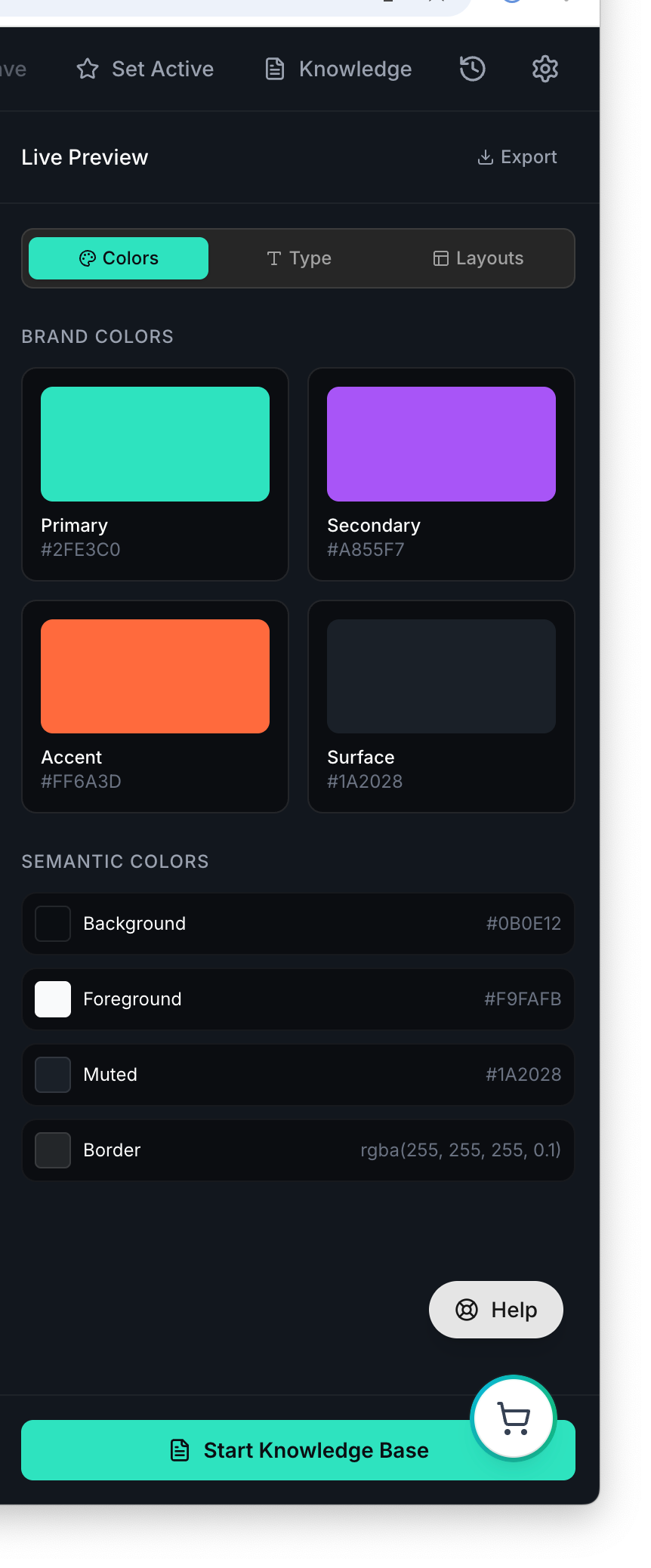
Review the saved brand tokens in preview after a logo change so the rest of the visual system still feels coherent.
Save the brand before you leave the editor or move into Knowledge Base work.