
TrendTap Email and SMS Notifications
At a glance
| Topic | Details |
|---|---|
| Best for | Setting up daily trend notifications so your brief arrives by email or text without having to check the app. |
| Start here | Open Settings → Preferences and scroll to the TrendTap Notifications section. |
| Outcome | You receive a daily trend brief by email or SMS, and you know how to adjust or turn off notifications. |
Open it now
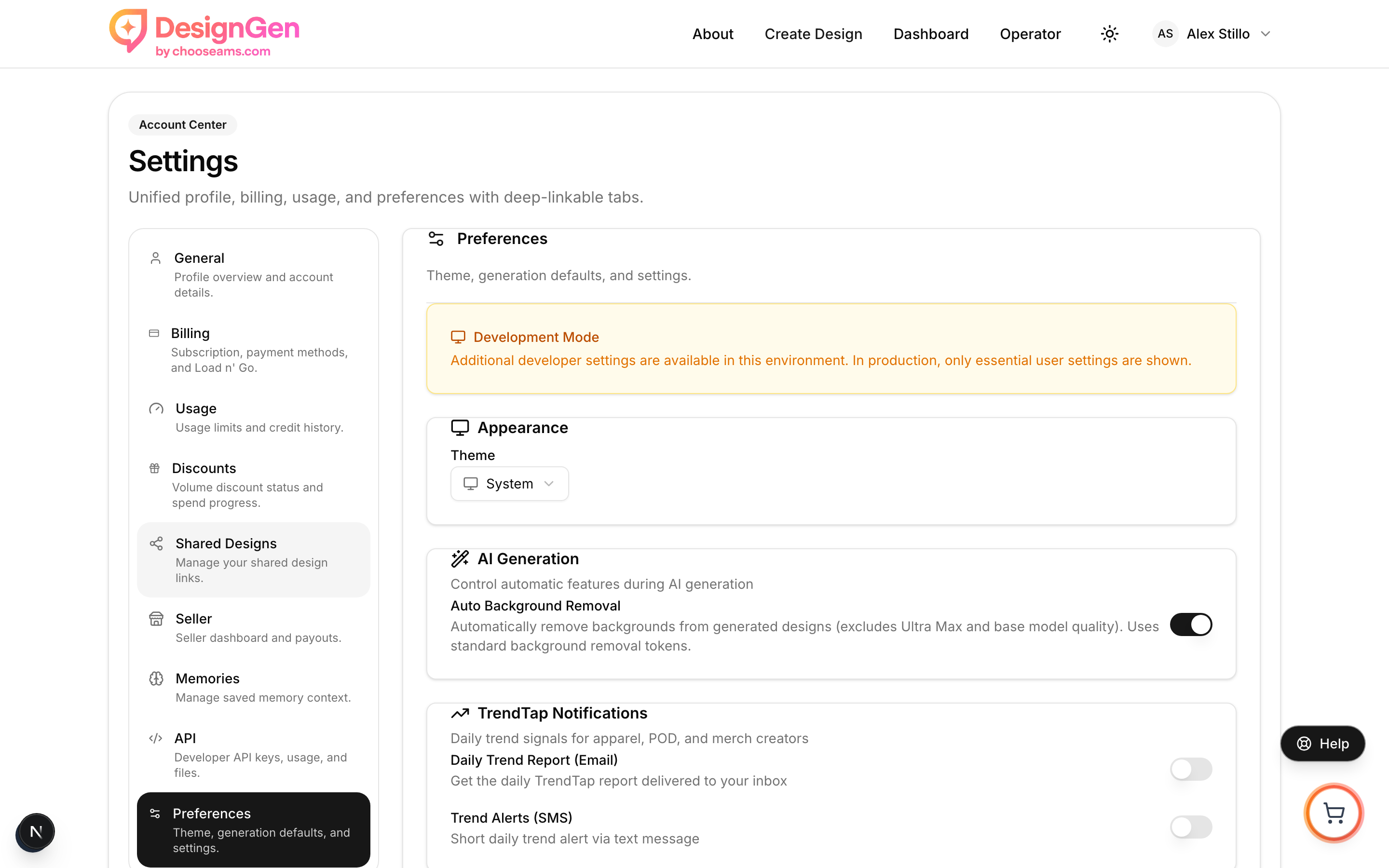
The TrendTap Notifications section has two toggles: one for email and one for SMS. Both are off by default.
Before you start
- Email notifications are available to all plans, but the email content reflects your plan level (global trends for Free, personalized brief for Pro).
- SMS notifications require a phone number on your profile. Add one in the Phone field before enabling SMS.
- Both notification types are off by default. You need to opt in.
How to enable email notifications
- Click your profile avatar in the top-right corner and select Settings.
- Scroll down to the TrendTap Notifications section (marked with a trending-up icon).
- Toggle on Daily Trend Report (Email).
- Your preference is saved automatically. You will see a "Settings updated successfully" confirmation.
The daily email arrives each morning after the TrendTap pipeline completes (typically by 5:30 AM UTC). It includes your top opportunities, key trend highlights, and direct links to act.
How to enable SMS notifications
- First, make sure you have a phone number saved on your profile. If the Phone field is empty, add your number and save.
- Scroll to the TrendTap Notifications section.
- Toggle on Trend Alerts (SMS).
- If the toggle is greyed out, it means no phone number is on file. Add one first.
SMS alerts are concise — a short text message with the day's top trend and a link to your full brief.
SMS availability: SMS alerts are a short daily message, not a spam channel. You will receive at most one text per day.
What the daily email looks like
The daily TrendTap email is designed for a quick morning scan:
- Subject line — The day's headline trend or your top mission title.
- Top opportunities — Your highest-fit missions with fit scores (Pro) or top global trends (Free).
- Quick action links — Direct links to your TrendTap brief, Operator, and specific opportunities.
- Unsubscribe link — One-click unsubscribe at the bottom of every email.
How to turn off notifications
You can turn off notifications in two ways:
- From Settings — Go to Settings → Preferences → TrendTap Notifications and toggle off the email or SMS switch.
- From the email — Click the unsubscribe link at the bottom of any TrendTap email. This toggles off the email preference automatically.
Notification frequency
| Channel | Frequency | Timing | Content |
|---|---|---|---|
| Once daily | ~5:30 AM UTC | Full brief summary with top opportunities and action links | |
| SMS | Once daily | ~5:30 AM UTC | Short alert with top trend and link to brief |
No spam: TrendTap sends at most one email and one SMS per day. There are no promotional follow-ups, drip sequences, or upsell emails in the TrendTap notification channel.
Example: Setting up your morning trend email
You want TrendTap insights in your inbox every morning without opening the app.
- Open Settings from your profile menu.
- Scroll to TrendTap Notifications.
- Toggle on "Daily Trend Report (Email)."
- The next morning, check your inbox. You will see an email with your top mission and a link to act on it.
- Click any opportunity link in the email to go directly to that mission in TrendTap.
Result: You now get a curated trend brief every morning. Open it over coffee, click the best opportunity, and start designing before your competitors even know the trend exists.
Visual walkthrough
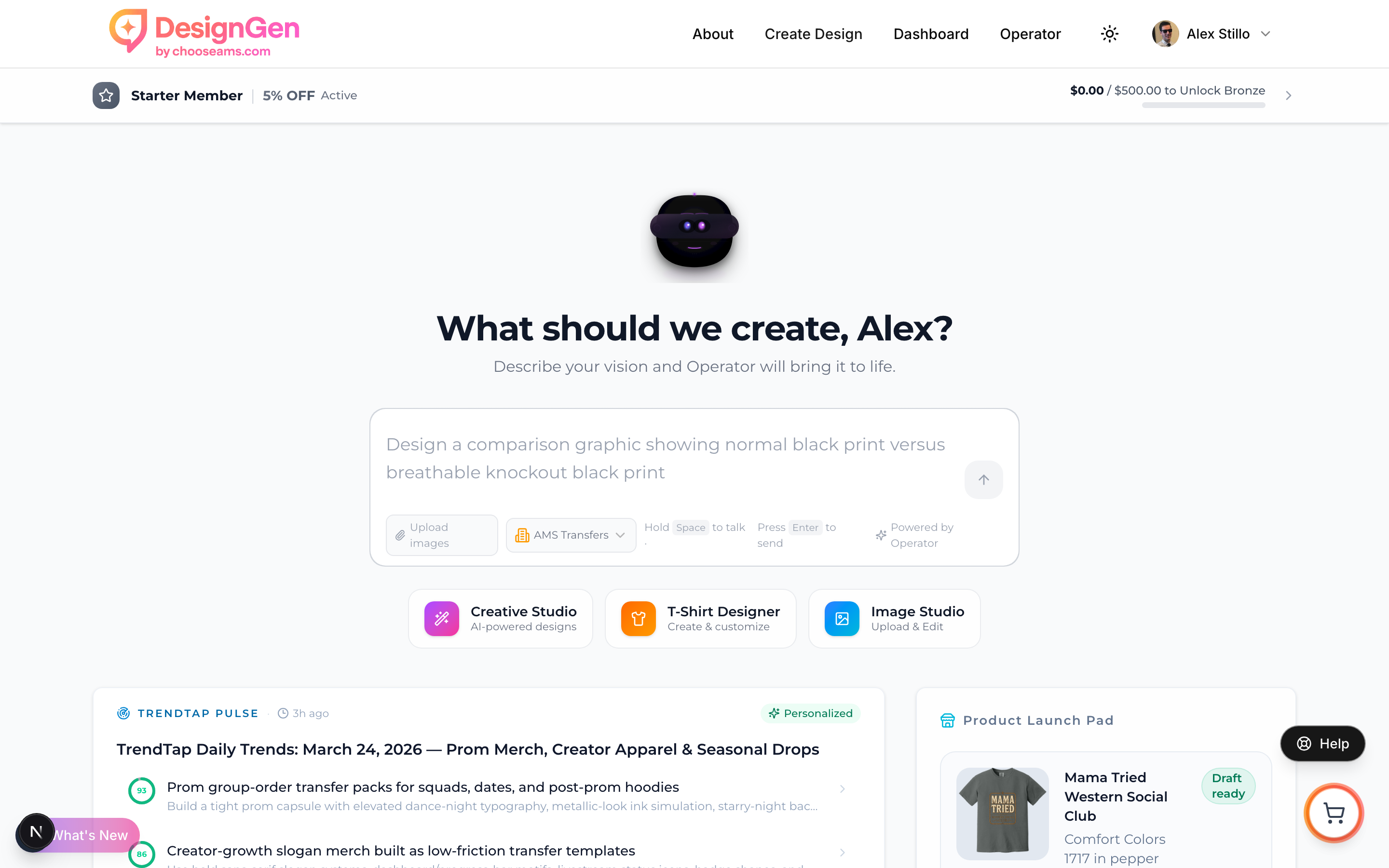
Even without notifications, the dashboard card always shows your latest brief.
The dashboard card is another way to know when fresh trends are ready — no notification needed.
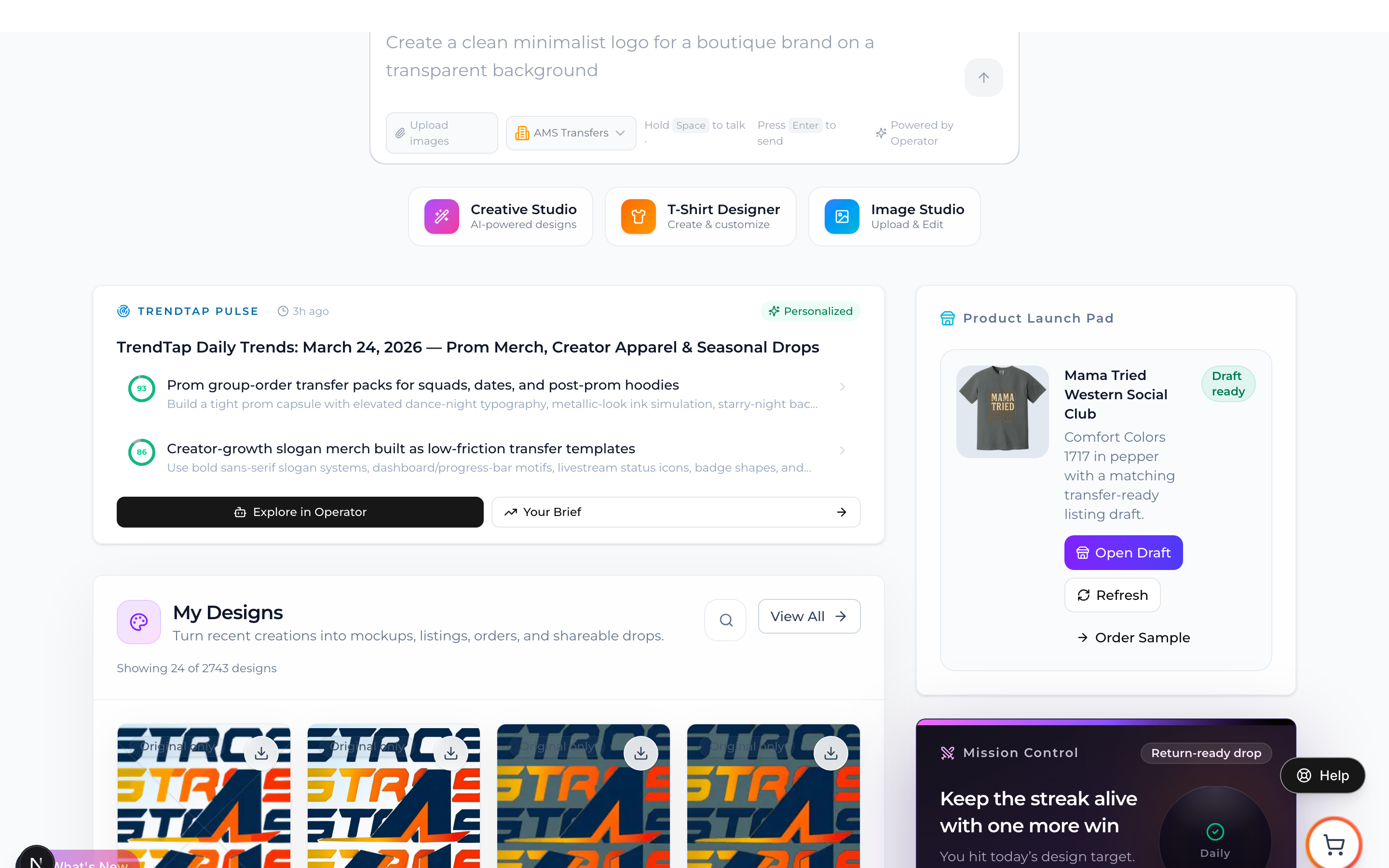
Pro users see personalized opportunities highlighted right on the dashboard card.
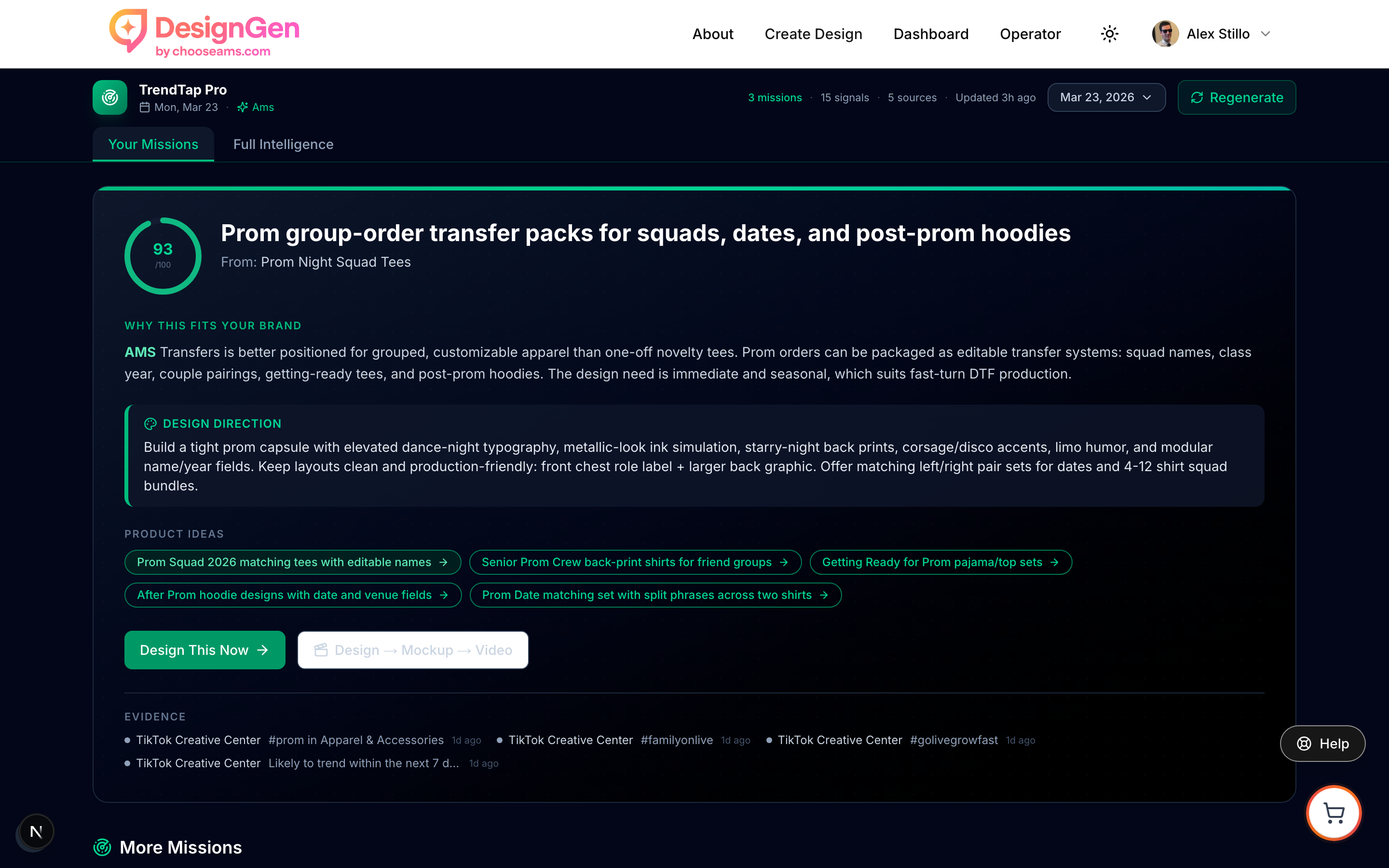
Your daily missions are always waiting in the Missions tab, even if you skip notifications.