
TrendTap Overview and How It Works
At a glance
| Topic | Details |
|---|---|
| Best for | Understanding what TrendTap does, how the daily intelligence pipeline works, and where to find your personalized design missions. |
| Start here | Open TrendTap to see today's brief. If you are on a Pro or Enterprise plan, you will see personalized missions matched to your brand. |
| Outcome | You know how to find trending opportunities, read your daily brief, and take the first step toward turning a trend into a product. |
Open it now
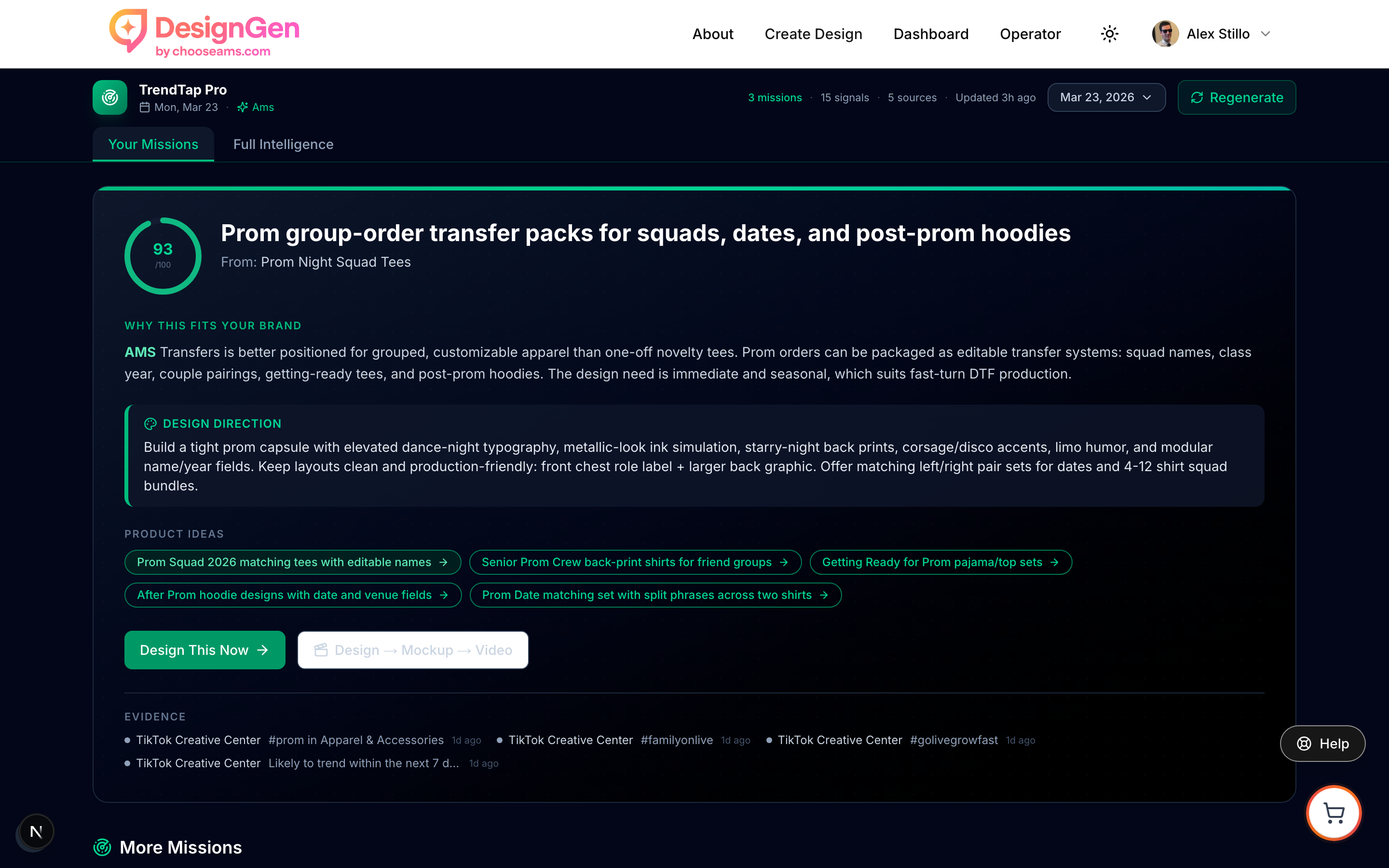
The Missions tab is your daily starting point. Personalized opportunities are ranked by how well they fit your brand.
Before you start
- TrendTap works best when you have a brand set up in Brand Studio. Personalized missions use your brand's style tags, subjects, and design history to find the right opportunities.
- Free users see global trend reports. Upgrade to Pro for personalized missions, fit scores, niche radar, and design directions.
- The daily brief refreshes automatically. You do not need to do anything — just check TrendTap each morning.
What TrendTap does
TrendTap is an AI-powered trend intelligence engine built specifically for apparel, print-on-demand, and merch creators. Every day, it researches market signals across multiple sources, identifies emerging trends, and turns them into actionable design opportunities.
Here is how the pipeline works:
- Research — TrendTap scans trend sources including Google Trends, social signals, and industry data every day.
- Global brief — The research is distilled into a daily global brief covering the most important trends for apparel and merch.
- Personalization — For Pro and Enterprise users, the global brief is personalized against your brand's style, design history, and niche to produce missions that fit you.
- Published reports — Trends are compiled into shareable public reports. Weekly and monthly aggregations provide higher-level views.
- Dashboard surfacing — The most important unread report is highlighted on your main dashboard, so you never miss a cycle.
Pipeline timing: The research pipeline runs daily between 4:45 and 5:15 AM UTC. Your brief is typically ready by the time you start your day.
The two tabs
Missions tab
The Missions tab is where you act. It shows:
- Hero Mission — Your top opportunity with the highest fit score, full design direction, and product ideas.
- More Missions — Additional opportunities (typically 2–4) ranked by fit score.
- Quick Wins — Short, actionable prompts you can execute immediately with one click.
- Niche Radar — Trend signals specific to your design niche, found through targeted web research (Pro only).
- Strategy Panel — Watchouts to avoid and next steps to take.
- Workflow Launcher — A guided pipeline from Design → Mockup → Video.
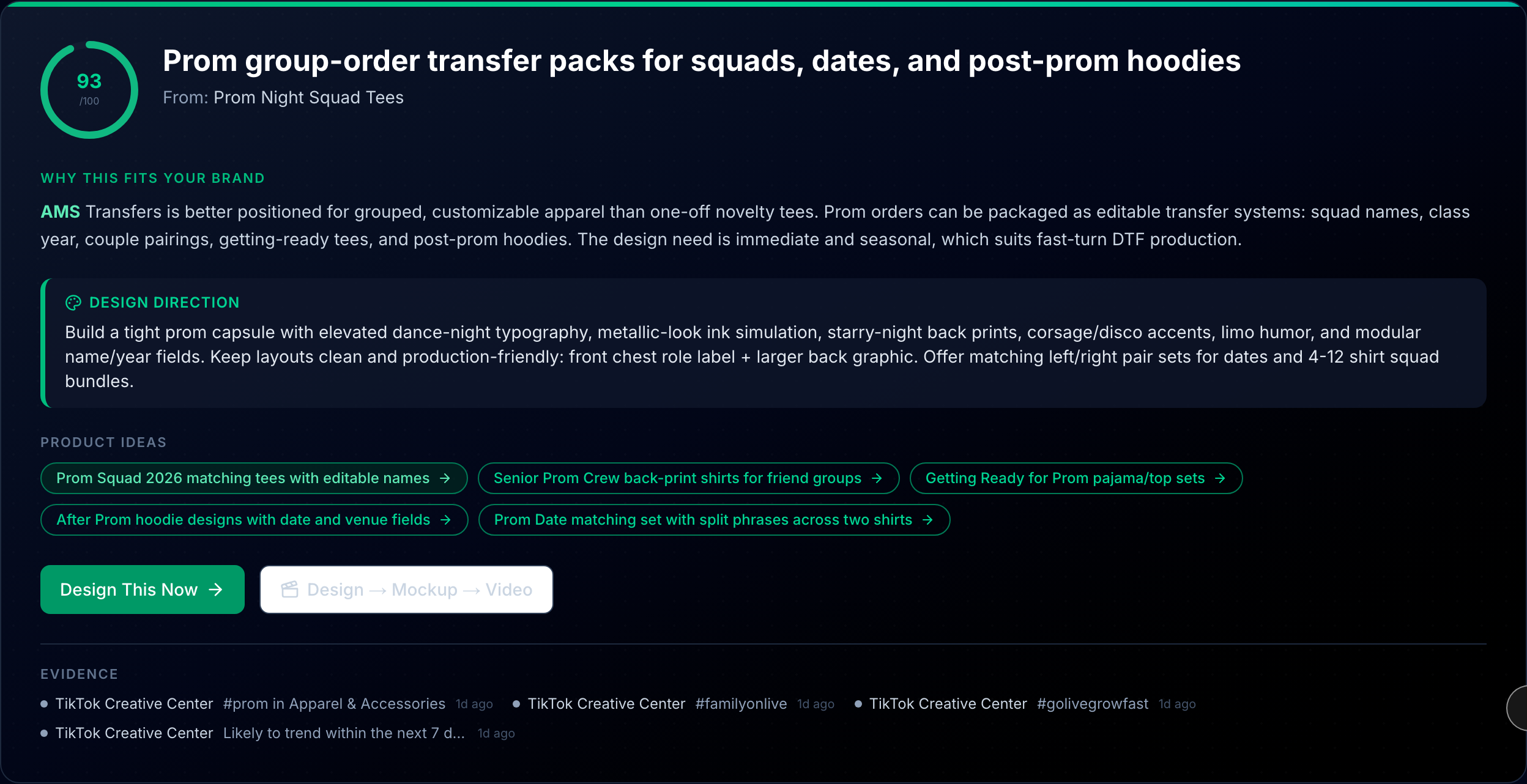
The hero mission shows your highest-fit opportunity. The Fit Ring score (0–100) tells you how well this trend matches your brand.
Intelligence tab
The Intelligence tab is where you read. It shows full published trend reports with:
- A time-horizon selector to switch between Monthly, Weekly, and Daily views.
- Rich report sections with summaries, analysis, and takeaway bullets.
- FAQ sections answering common questions about the trends.
- A "Create Design" button on every section to launch a design directly from the report.
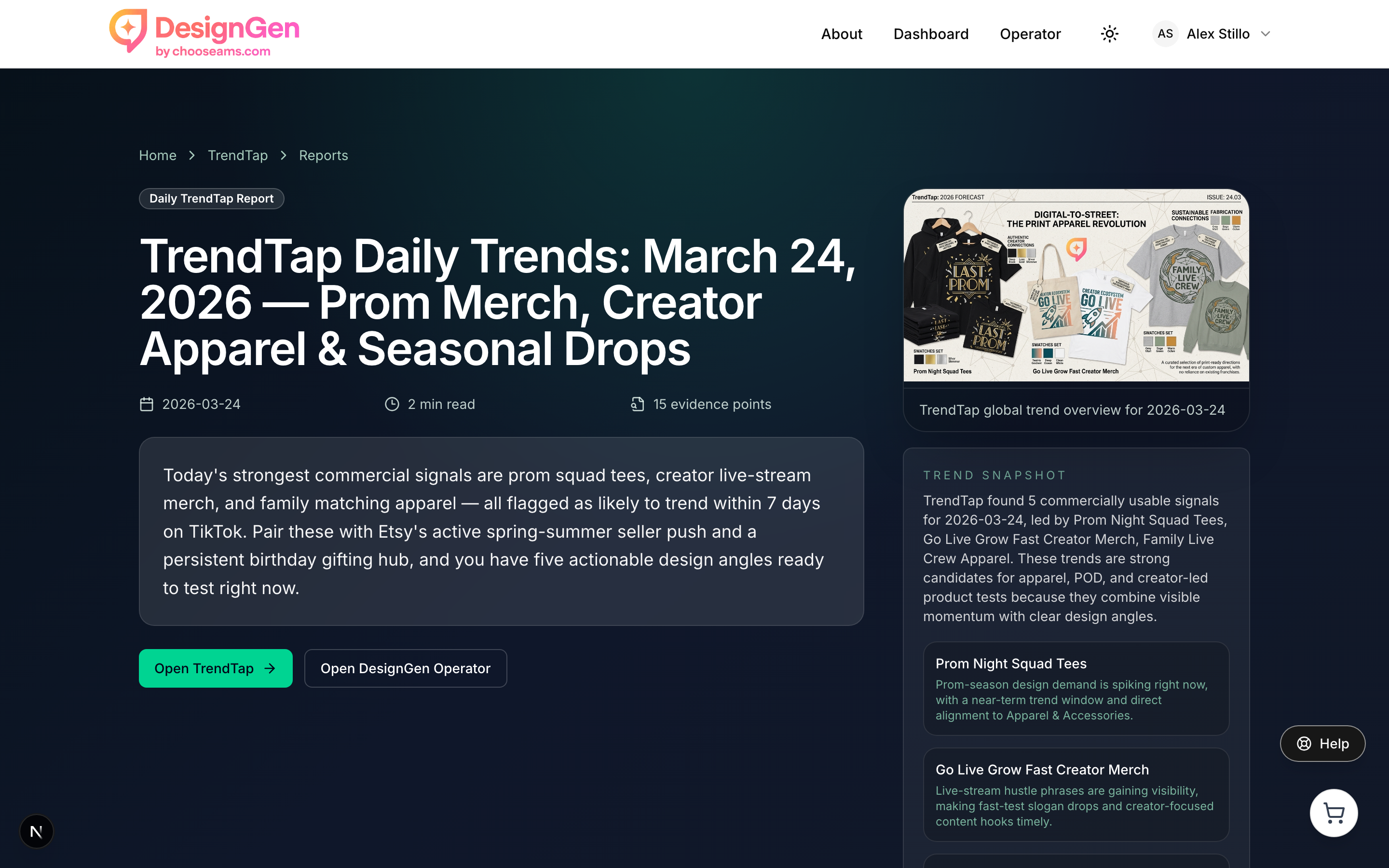
TrendTap publishes full trend reports that you can read on the Intelligence tab. Monthly reports take priority over weekly, which take priority over daily.
What you get on each plan
| Feature | Free | Pro / Enterprise |
|---|---|---|
| Global trend reports (Intelligence tab) | ✓ | ✓ |
| Public shareable reports | ✓ | ✓ |
| Dashboard trend card | ✓ | ✓ |
| Personalized missions with fit scores | — | ✓ |
| Design directions and product ideas | — | ✓ |
| Quick wins | — | ✓ |
| Niche Radar | — | ✓ |
| Strategy panel (watchouts + next steps) | — | ✓ |
| Evidence trail | — | ✓ |
| Email and SMS notifications | — | ✓ |
| Auto-generated daily briefs | — | ✓ |
First-time setup
- Make sure you have at least one brand set up in Brand Studio. TrendTap uses your brand's style tags, subjects, and design history to personalize missions.
- Open TrendTap from the sidebar or dashboard card. Your first brief may take a moment to generate.
- Review the Missions tab for personalized opportunities. The hero mission at the top is your best match.
- Optionally, enable email or SMS notifications in Settings → Preferences → TrendTap Notifications so you get your daily brief without having to check manually.
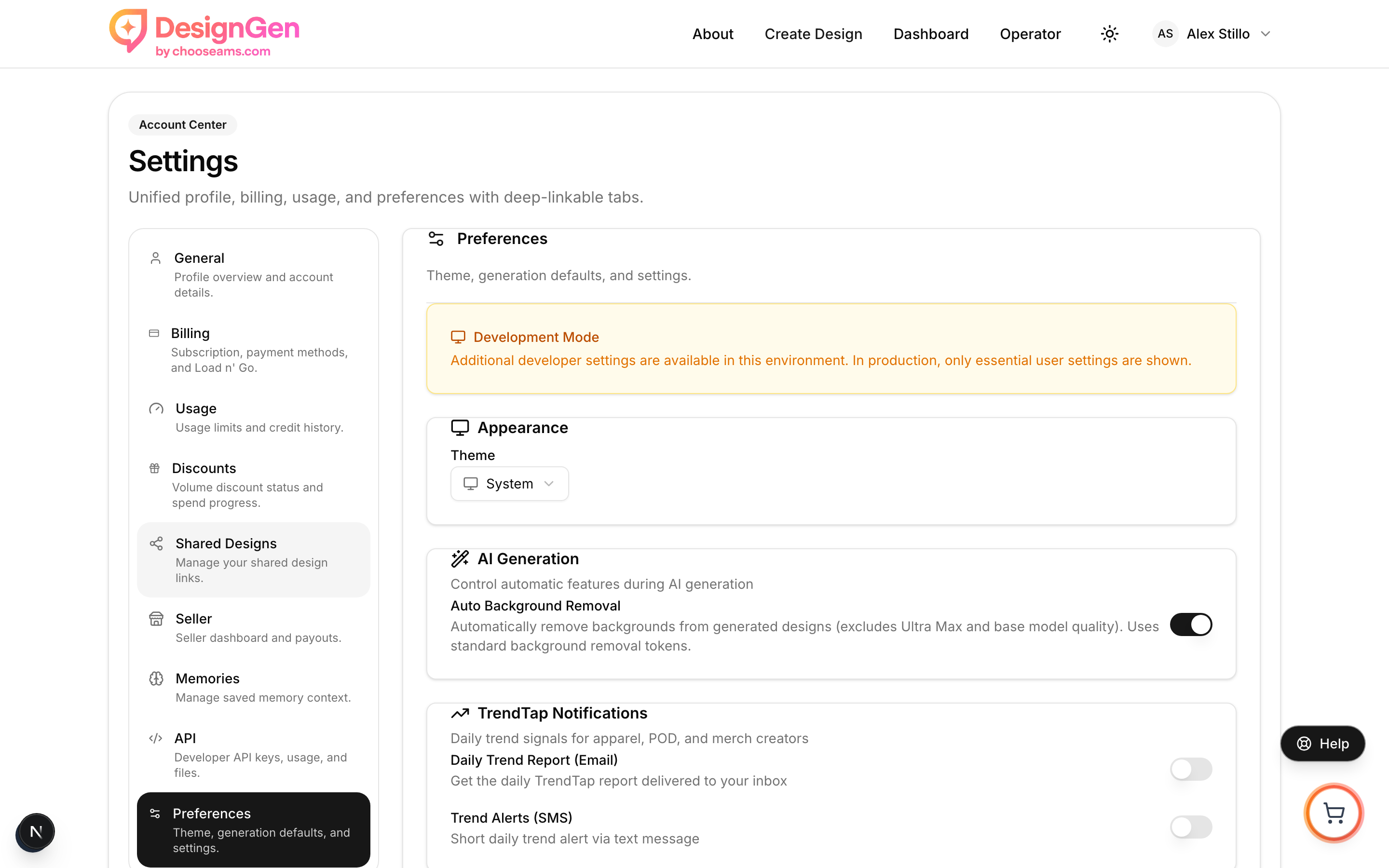
Enable the daily email digest or SMS alerts in your profile settings to get notified when fresh trends land.
Example: From morning brief to listed product by lunch
You open DesignGen at 8 AM and see a "New" badge on your TrendTap dashboard card.
- You click the card and land on the Missions tab. The hero mission suggests a "Cottagecore Wildflower" design based on a trending aesthetic that fits your rustic brand.
- You click Design This Now. Operator opens with the design direction pre-loaded: "Vintage botanical illustration with muted earth tones and hand-drawn line work."
- Operator generates three design variants. You pick the best one.
- You click Mockup in the workflow launcher. The design lands on a Bella Canvas 3001 tee mockup.
- You click Video to generate a 15-second social clip.
- By noon, you have a design, mockup photos, and a video ready to list.
Result: What used to take a full day of trend research, design iteration, and content creation now fits into one morning.
Visual walkthrough
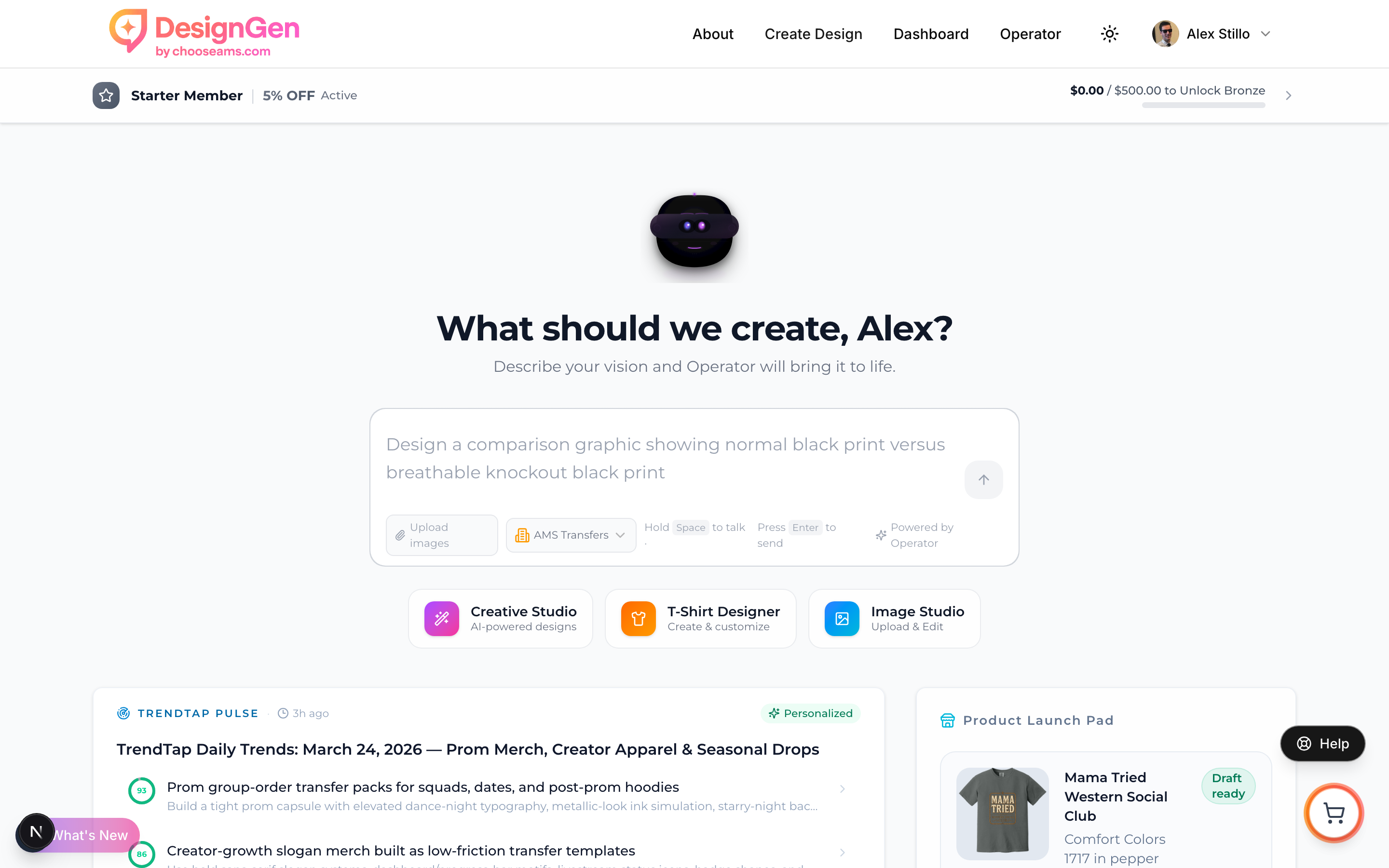
TrendTap surfaces the most important unread report directly on your dashboard.