
Help CenterCreative Studio
Creative Studio
Creative Studio Images, Companion Copy, and Video
Updated March 19, 2026
3 min read
At a glance
| Topic | Details |
|---|---|
| Best for | Turning one project direction into multiple usable outputs. |
| Start here | Use this after the session direction is already good enough to produce from. |
| Outcome | A cleaner path from still image work into copy and motion without splitting the project. |
Open it now
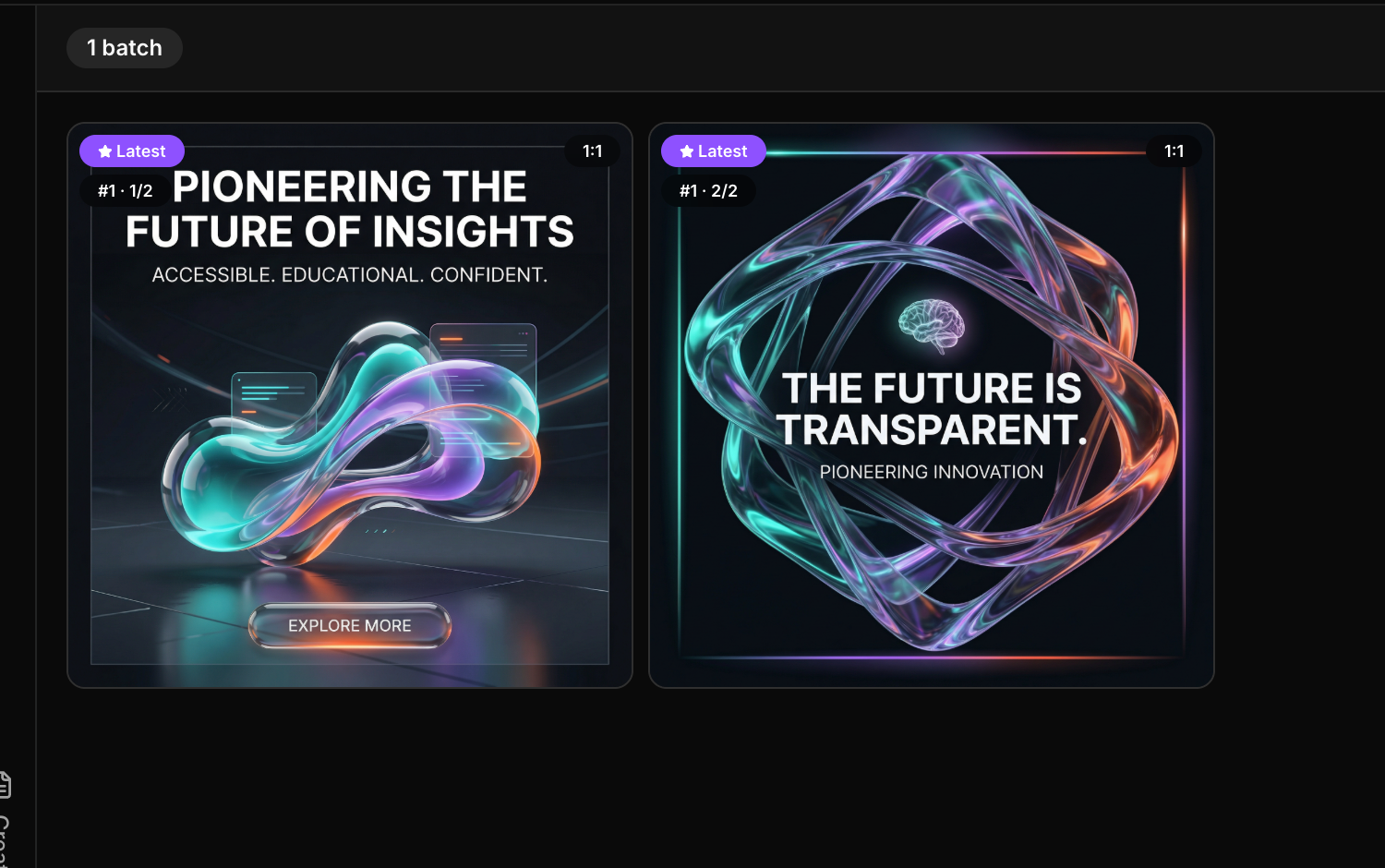
The gallery is not just a history list. It is the working memory for the project.
Before you start
- Get the still-image direction right before you branch into copy or video.
- Use one session for connected outputs so the copy and image work stay aligned.
- Companion copy can ask you to confirm the output type first, so watch the prompts closely.
What Creative Studio can produce from one session
- Images for the main visual work.
- Companion copy such as captions, headlines, or short ad text.
- Video follow-up work when a strong still should turn into motion.
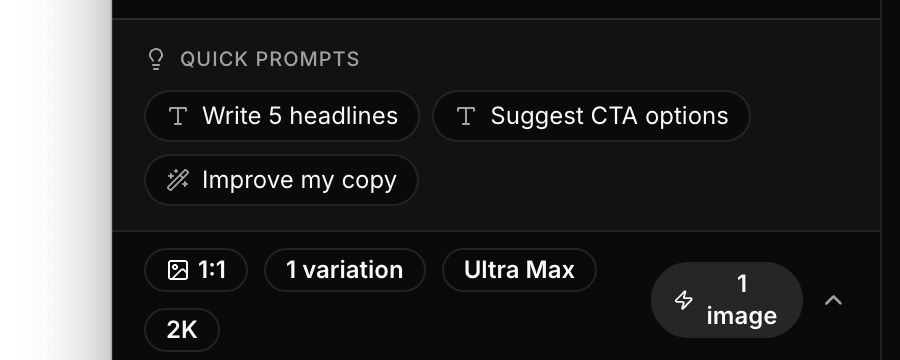
Quick prompts are useful when a user knows the goal but needs help phrasing the next request.
Recommended output sequence
- Get the still image direction right first.
- Save the version that will anchor the campaign.
- Use the same session to request supporting copy.
- Only move into video after the still is approved enough to reuse.
When to slow down
- If the brand still feels wrong, stop and fix the brand system.
- If the references are weak, improve them before you ask for more variants.
- If the copy and visuals are drifting apart, write the direction into the brief.
Example: Building a social launch set
- Generate the hero still.
- Ask for two placement-friendly variations from the same session.
- Generate caption options that match the approved direction.
- If the hero still feels strong enough, turn it into a short motion experiment.
Visual walkthrough
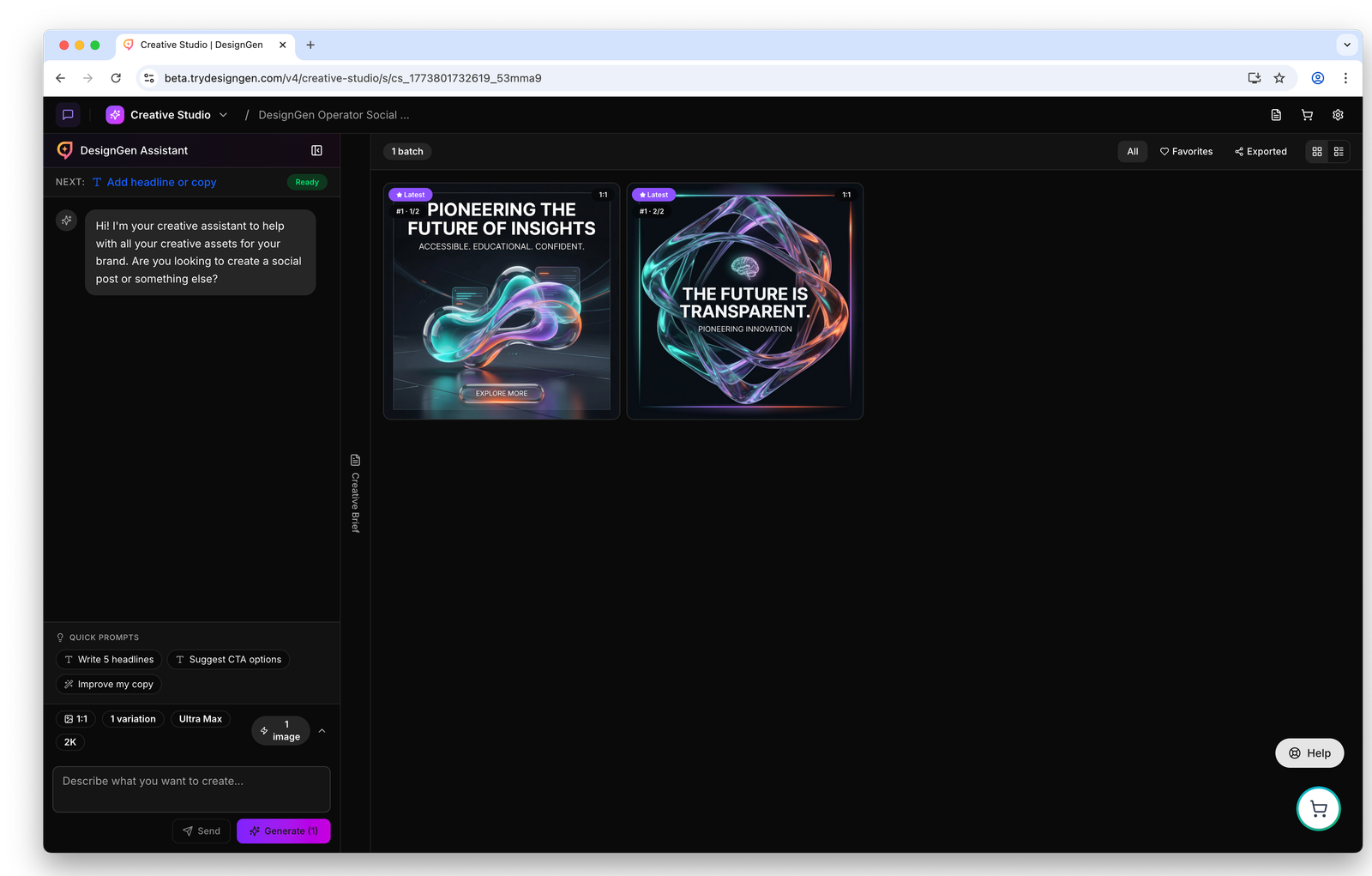
Use the full session view to check how images, copy, and follow-up requests fit together in one campaign thread.

The session toolbar is the fastest place to pivot the work after you review an image or draft.
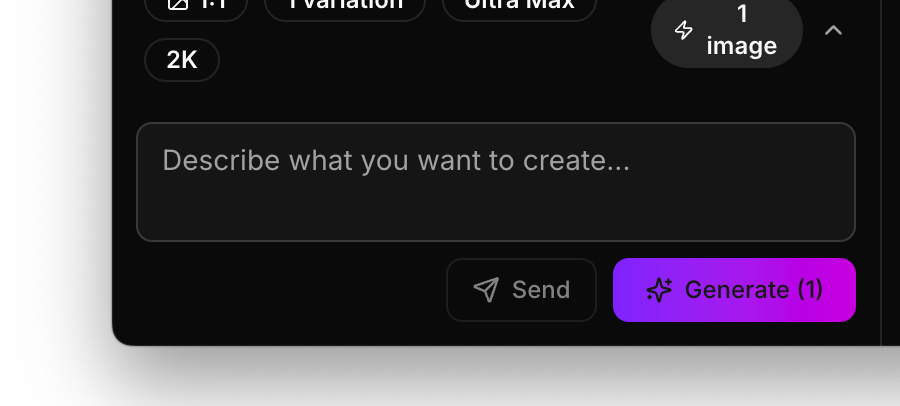
The compose area is where you turn a chosen visual direction into the next concrete image, copy, or video instruction.