
Creating Designs from TrendTap
At a glance
| Topic | Details |
|---|---|
| Best for | Understanding every CTA in TrendTap that launches a design, what happens when you click it, and how the full trend-to-product pipeline works. |
| Start here | Open TrendTap and find any design CTA: "Design This Now," a product idea pill, a quick win "Do this" button, or a report "Create Design" button. |
| Outcome | You can turn any trend signal into a design in Operator, then continue through mockup and video production without starting from scratch. |
Open it now

The design direction is a specific, actionable prompt — not a vague suggestion. It tells you exactly what style, motifs, and approach to use.
Before you start
- Every design CTA in TrendTap uses the same handoff mechanism: it builds a prompt from the trend context and sends it to Operator.
- Operator receives the design direction, trend name, and relevant context so it can start working immediately.
- You can always edit the prompt in Operator before submitting if you want to adjust the direction.
Every CTA that launches a design
TrendTap has six different places where you can launch a design. Each one sends a different prompt to Operator:
| CTA | Location | What it sends to Operator |
|---|---|---|
| Design This Now | Hero mission card | The full design direction from the top opportunity. |
| Design button | Mission cards | The design direction from that specific opportunity. |
| Product idea pill | Hero and mission cards | A product-specific prompt combining the idea, design direction, and trend name. Runs in auto mode. |
| Do this | Quick wins strip | The quick win prompt as-is. |
| Start (Design step) | Workflow Launcher | The top opportunity's design direction. |
| Create Design | Intelligence tab report sections | The trend title combined with its design angle. |
What happens when you click
Every design CTA follows the same three-step handoff:
- Build — TrendTap constructs a prompt from the trend context. For product idea pills, this includes the product type, design direction, and trend name. For quick wins, it uses the prompt verbatim.
- Handoff — The prompt is stored in a temporary handoff record with a unique ID. TrendTap navigates you to Operator with
?handoff={id}in the URL. - Receive — Operator reads the handoff, loads the prompt into the composer, and (for auto-mode CTAs like product ideas and the hands-free button) starts executing immediately.
Acted-on tracking: When you click any design CTA, TrendTap also marks the source report as "acted on." This helps TrendTap learn which types of trends you care about.
What Operator receives
When Operator opens from a TrendTap handoff, it has everything it needs to produce a design:
- Design direction — The specific style prompt (e.g., "Vintage botanical illustration with muted earth tones and hand-drawn line work").
- Trend context — The name of the source trend so Operator can research further if needed.
- Product context — For product idea pills, the specific product type (e.g., "Oversized tee" or "Sticker set").
- Auto mode — Product idea pills and the hands-free button send prompts in "auto" submission mode, so Operator starts working without waiting for you to click Submit.
Each product idea pill launches Operator with a product-specific prompt. The design direction and trend context are included automatically.
The full journey: TrendTap → Operator → Mockup → Video
TrendTap is designed to be the starting point of a complete trend-to-product pipeline:
- TrendTap identifies the trend and gives you a design direction.
- Operator generates the design based on the direction. You can iterate, adjust, and finalize.
- Mockup Studio places your finalized design on product blanks — Bella Canvas 3001, Comfort Colors, Gildan, and more.
- Creative Studio generates scroll-stopping social video content using your mockup images.
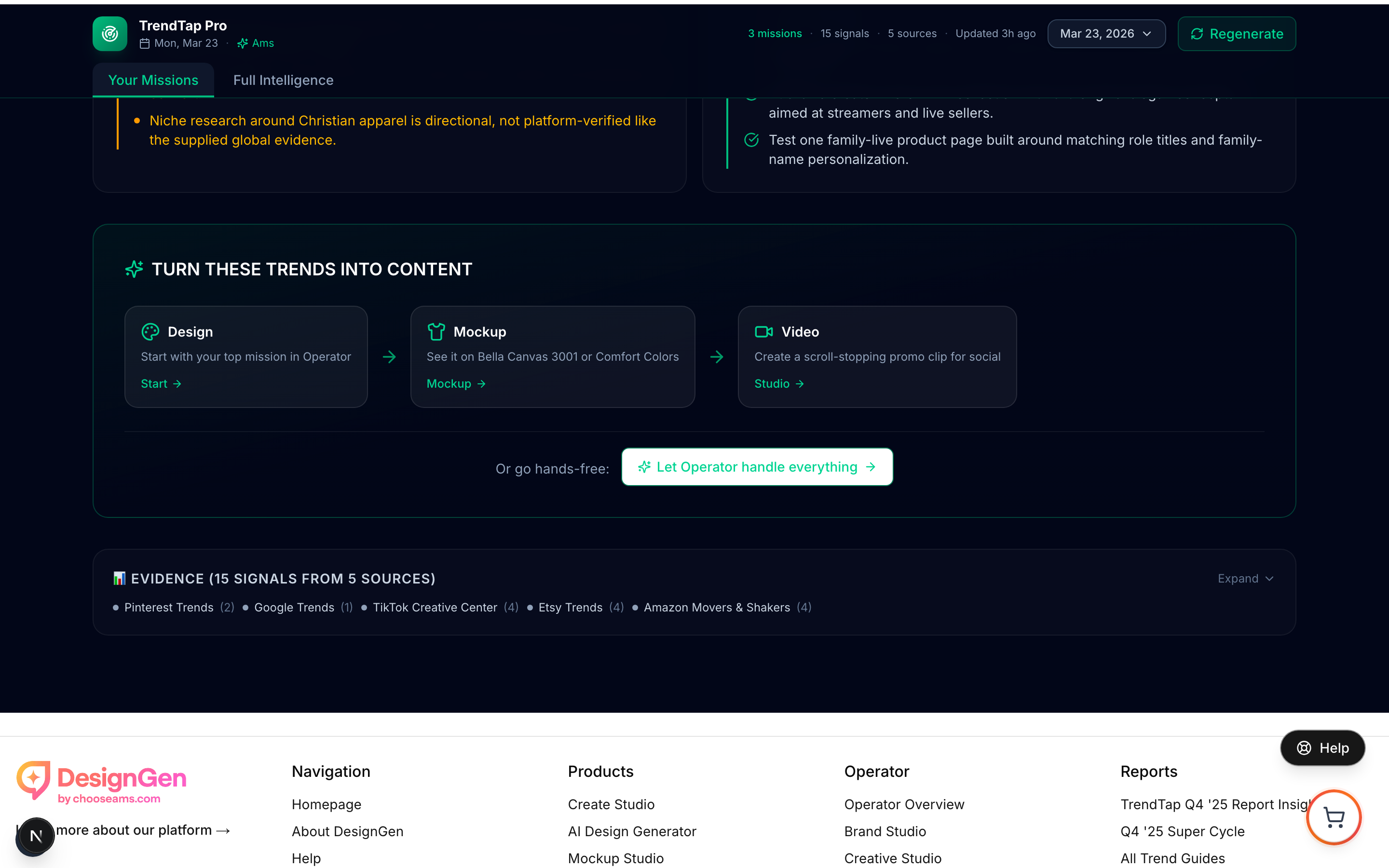
The Workflow Launcher at the bottom of the Missions tab guides you through each step. Follow the arrows from Design to Mockup to Video.
You can follow the pipeline step by step, or use the "Let Operator handle everything" button to run the entire flow automatically.
How hands-free mode works
The hands-free button at the bottom of the Workflow Launcher sends a comprehensive prompt to Operator that includes:
- The full design brief from the hero mission.
- Instructions to generate mockups on popular blanks.
- Suggestions for social video angles.
- Auto-submission mode, so Operator starts immediately.
Operator will work through the pipeline autonomously, pausing only when it needs your approval for tool actions. You can step in at any point to adjust direction.
Example: Turning a trending aesthetic into a ready-to-list design
Your brief highlights a "Dark Academia Book Lover" trend with a fit score of 92.
- You click the "Tote bag" product idea pill on the hero mission.
- Operator opens with the prompt: "Design a Tote bag. Style: Vintage library illustration with serif typography, aged paper texture, and dark jewel tones. For: Dark Academia Book Lover trend."
- Operator generates the design in auto mode. You see a literary-themed tote design within 60 seconds.
- You open Mockup Studio and drop the design onto a canvas tote blank.
- You open Creative Studio and generate a 10-second product showcase video.
- You download all assets and list the product on your store.
Total time: From spotting the trend to having list-ready assets: about 10 minutes.
Visual walkthrough
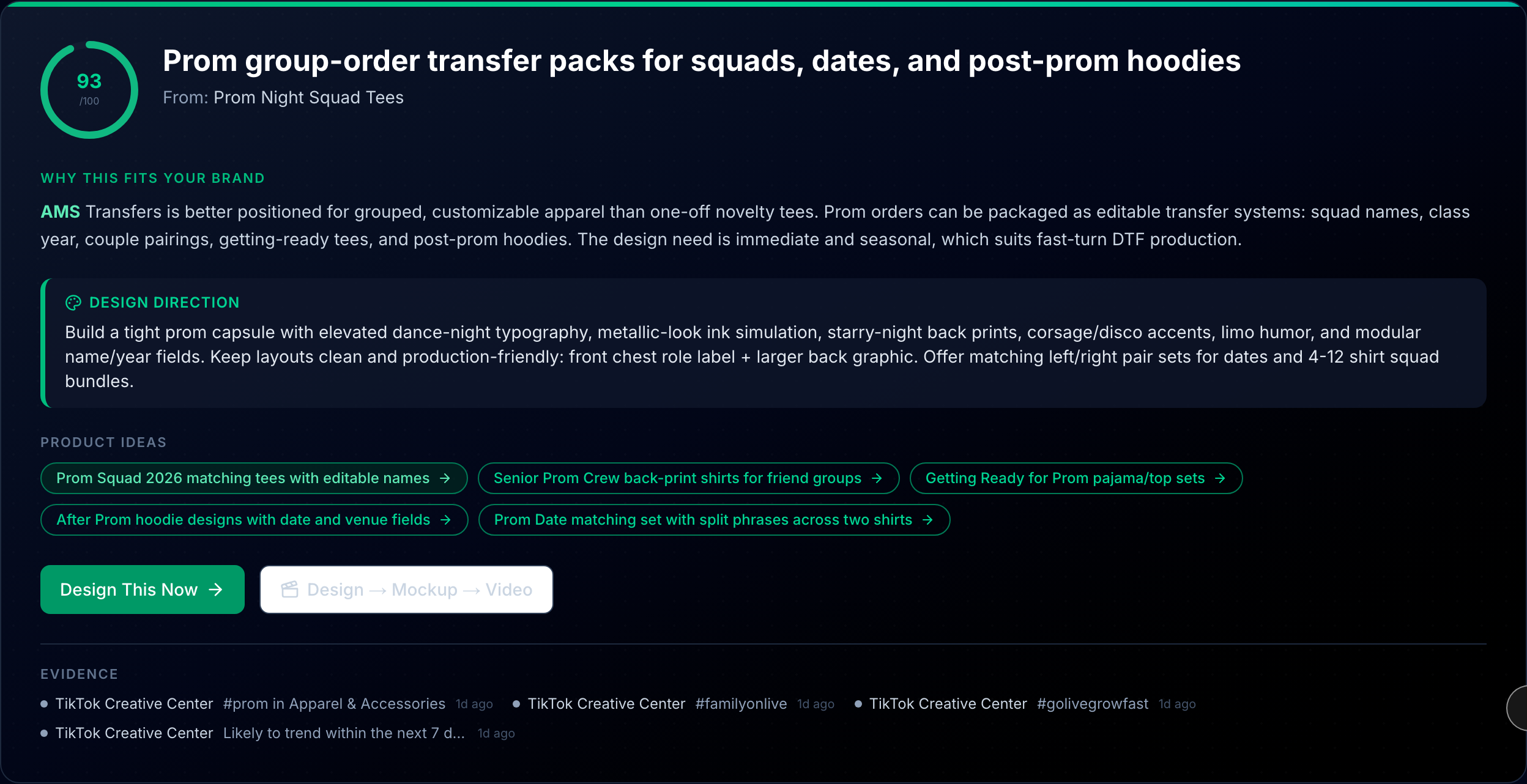
Each product idea pill launches a design session with the idea pre-loaded.
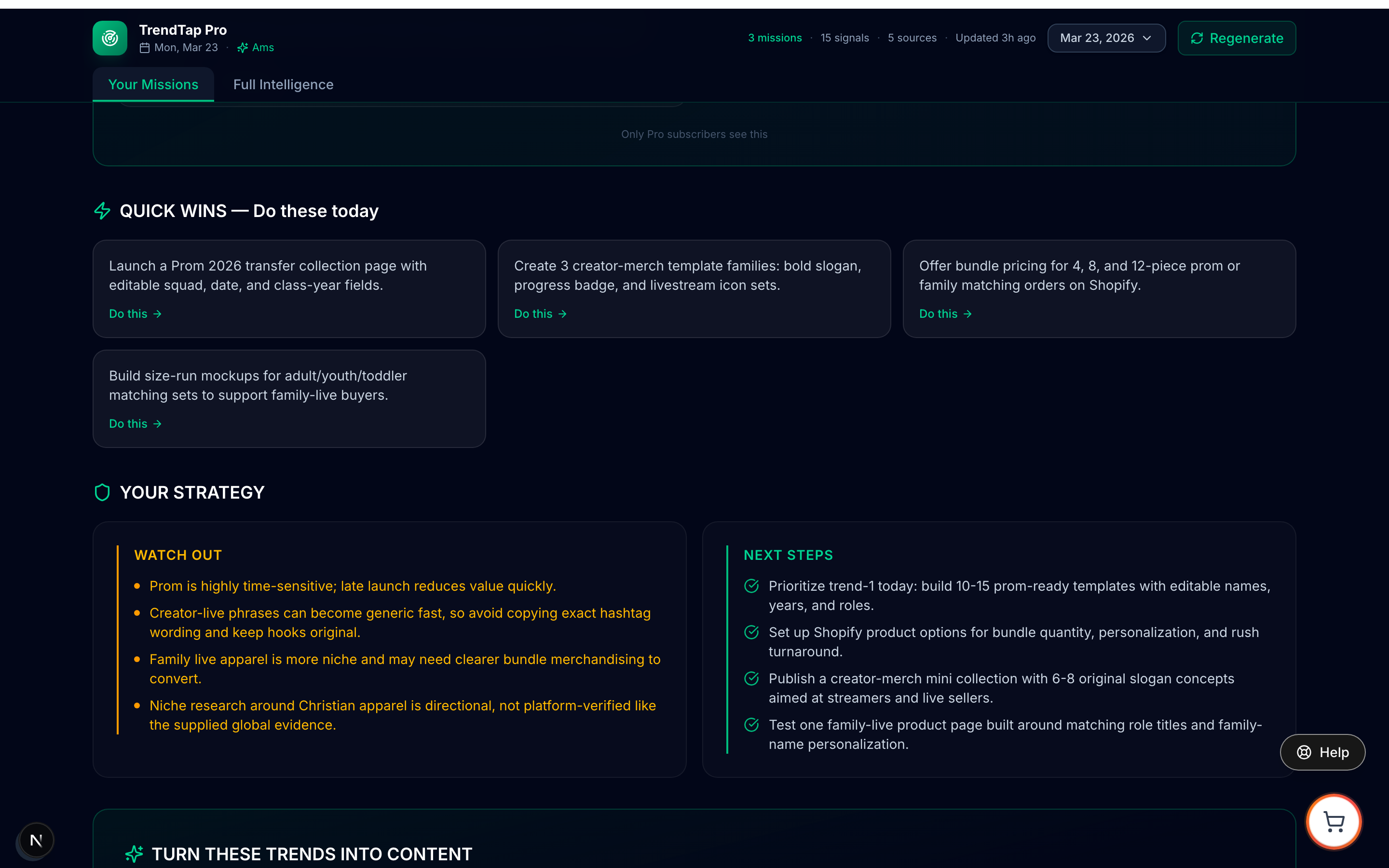
Quick wins are the fastest path from trend signal to design — one click and Operator takes over.