
Missions Tab — Your Personalized Design Opportunities
At a glance
| Topic | Details |
|---|---|
| Best for | Understanding every section of the Missions tab: hero mission, mission cards, quick wins, niche radar, and strategy panel. |
| Start here | Open TrendTap and make sure the Missions tab is selected. If you see an eligibility gate, you need a Pro or Enterprise plan. |
| Outcome | You can read a mission, understand its fit score, launch a design from a product idea pill, and use the full Missions workflow. |
Open it now
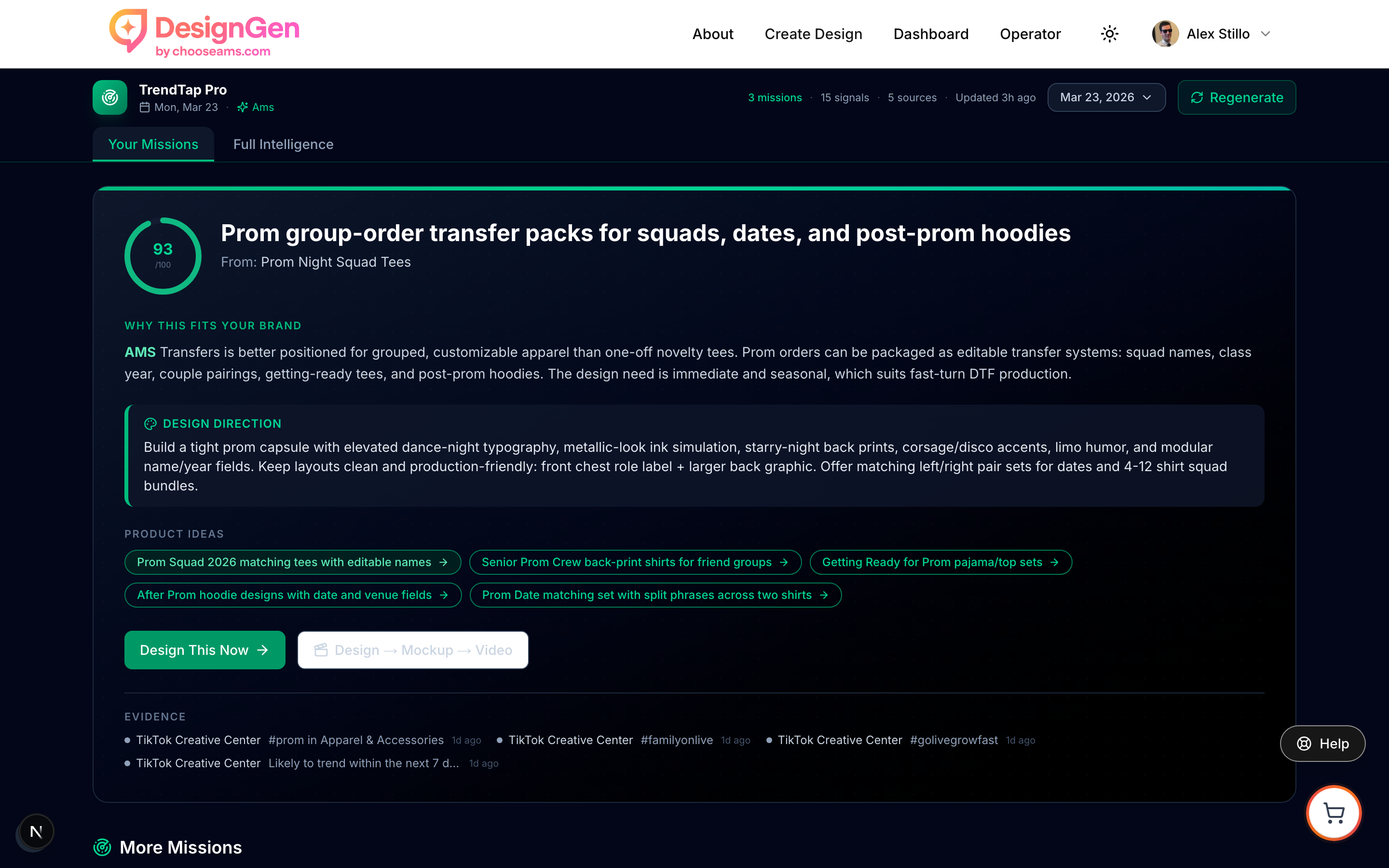
The Missions tab is organized from highest priority at the top to supporting context at the bottom.
Before you start
- The Missions tab requires a Pro or Enterprise plan for personalized content. Free users see global trends on the Intelligence tab instead.
- Missions are generated from your brand's style tags, design history, and niche context. A well-defined brand produces better-matched missions.
- Every mission can be acted on with one click. You do not need to copy prompts or switch tools manually.
The Hero Mission
The hero mission is the top opportunity in your daily brief — the one with the highest fit score. It appears as a large card at the top of the page.
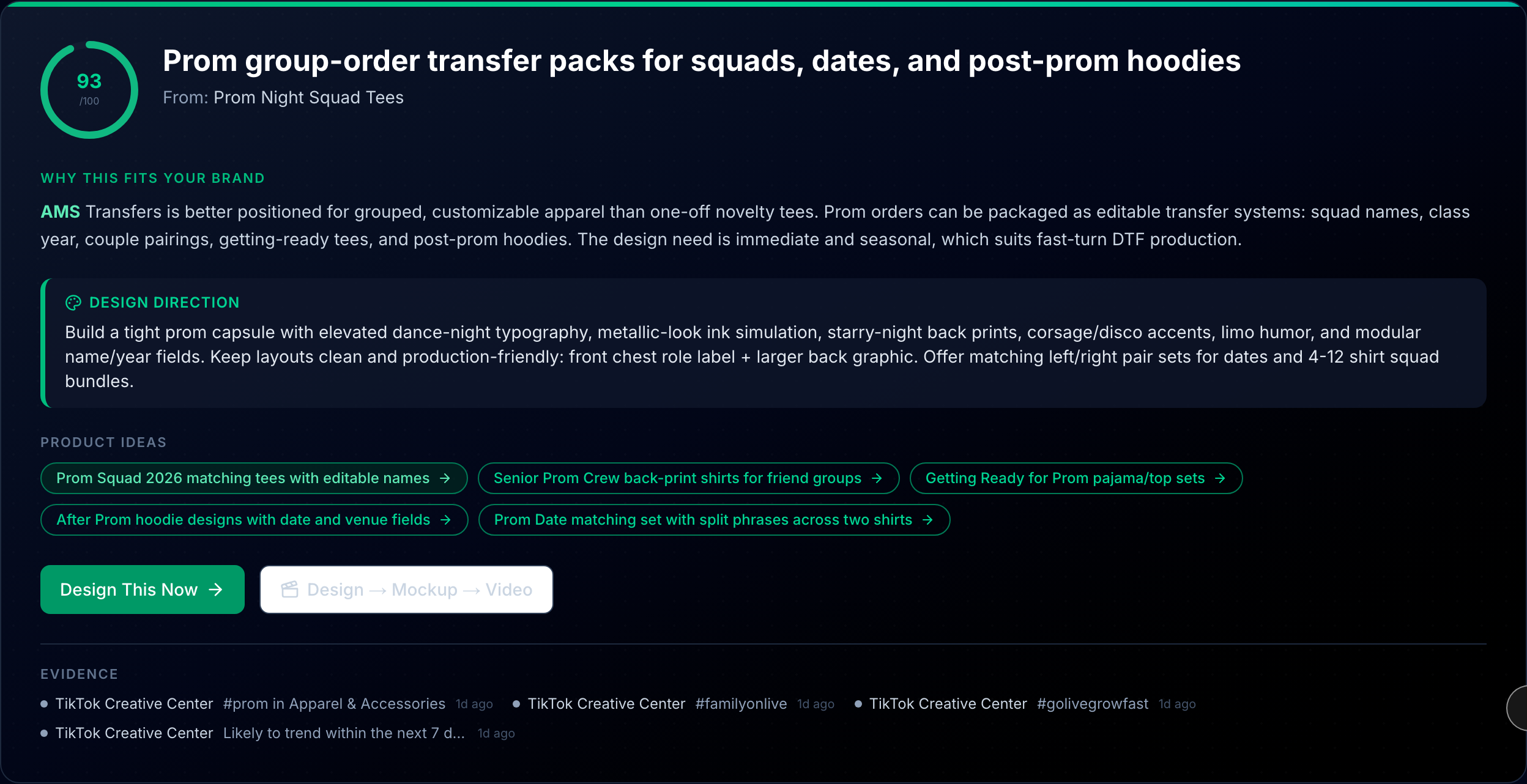
The hero mission combines the Fit Ring score, design direction, product ideas, and evidence trail in one card.
The hero mission card includes:
- Fit Ring — A visual donut chart showing the fit score (0–100). Green (80+) means strong fit, amber (50–79) means moderate, grey (below 50) means weak.
- Title — The name of the opportunity, such as "Cottagecore Wildflower Collection."
- Source trend — The underlying trend that generated this opportunity.
- Why it fits — A paragraph explaining why this trend matches your specific brand, with key style tags and subjects highlighted in green.
- Design direction — A specific, actionable design prompt you can use immediately.
- Product idea pills — Clickable buttons for specific product concepts (e.g., "Oversized tee," "Tote bag," "Sticker set").
- Design This Now button — Sends the design direction to Operator and starts creating.
- Design → Mockup → Video button — Opens Creative Studio for the full production pipeline.
Understanding Fit Scores
Every mission includes a fit score from 0 to 100. The score measures how well the trend opportunity matches your brand's style, audience, and design history.
| Score range | Color | What it means |
|---|---|---|
| 80–100 | Green (emerald) | Strong fit. This trend aligns well with your brand's proven style and audience. |
| 50–79 | Amber | Moderate fit. The trend has potential but may require adapting to your style. |
| 0–49 | Grey (slate) | Weak fit. Consider this a stretch opportunity — it may not match your current audience. |
How scores are calculated: Fit scores are based on the overlap between your brand's top style tags, subjects, search keywords, and design history with the trend's characteristics. More brand data produces more accurate scores.
More Missions
Below the hero, you will see 2–3 additional mission cards in a grid layout. These are ranked by fit score, highest first.
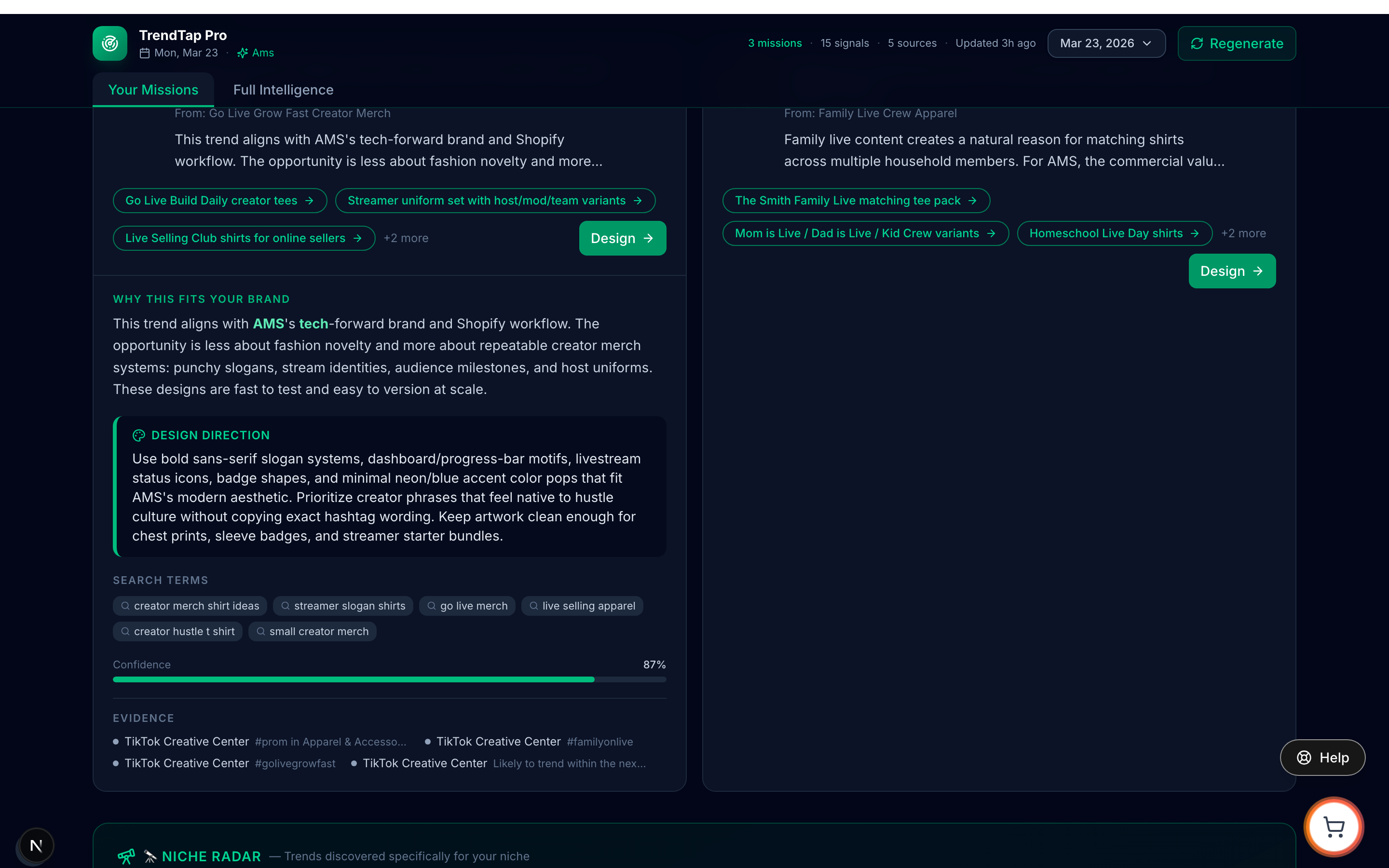
Additional missions appear in a two-column grid. Each card shows a compact summary you can expand for full details.
Each mission card shows:
- Fit Ring score
- Title and source trend
- A two-line preview of the "why it fits" explanation
- Up to three product idea pills
- A "Design" button to launch Operator
Click the expand arrow to see the full mission details:
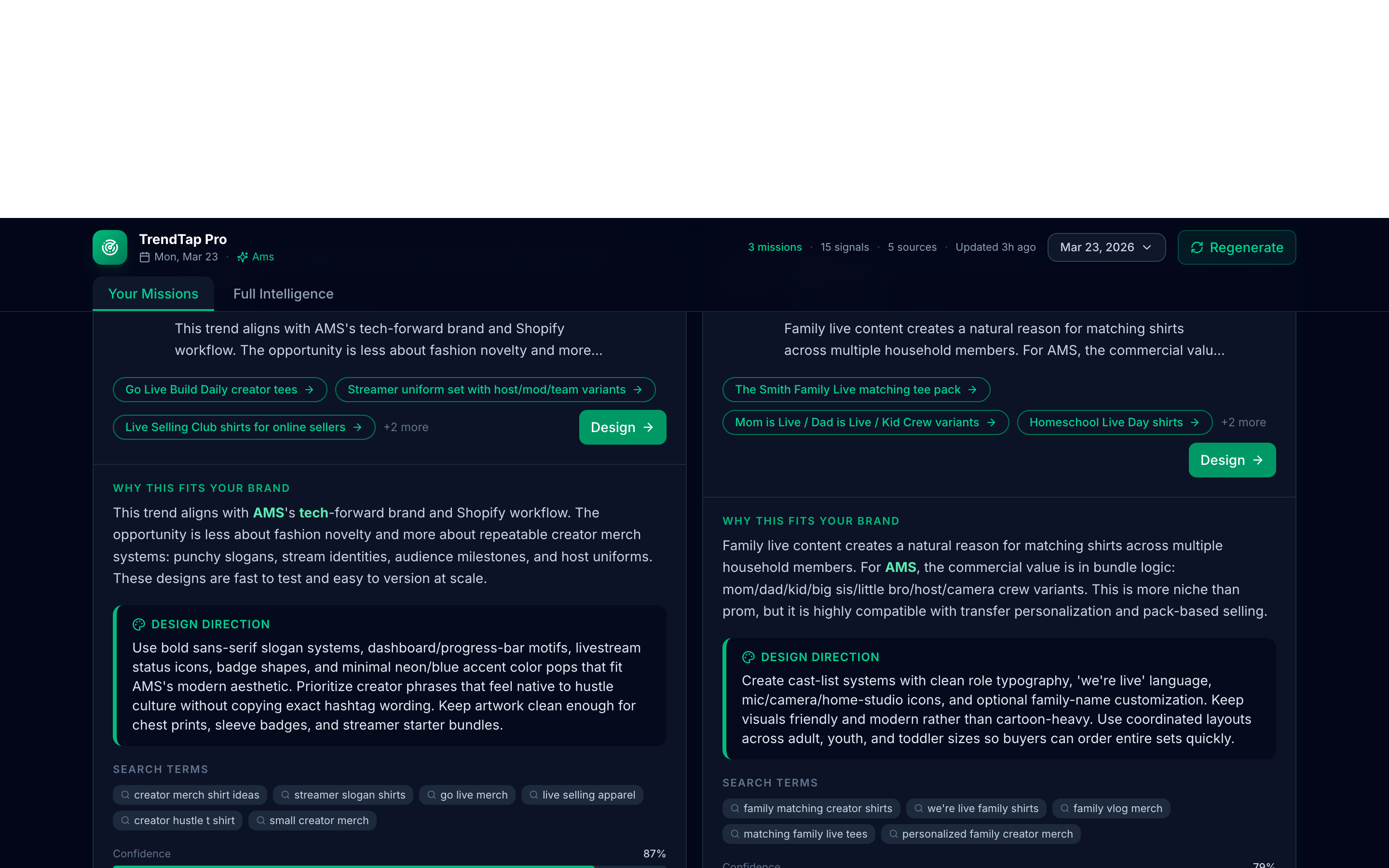
Expanding a mission reveals the complete design direction, search terms for research, confidence score, and evidence trail.
- Design direction — The full design prompt, shown in an emerald callout.
- Search terms — Keywords you can use to research the trend further.
- Confidence score — How confident TrendTap is in this signal (shown as a percentage bar).
- Evidence trail — The original sources that generated this signal, with source badges.
Product Idea Pills
Product idea pills are one of the fastest ways to go from trend to design. Each pill represents a specific product concept.
Product idea pills appear on each mission card. Click any pill to launch Operator with a product-specific design prompt — for example, "Oversized tee" combines the design direction with a tee-specific brief.
When you click a product idea pill:
- TrendTap builds a prompt that combines the product concept, design direction, and trend context.
- The prompt is sent to Operator in "auto" mode, so Operator starts working immediately.
- Operator generates a design tailored to that specific product.
Quick Wins Strip
Quick wins are short, actionable design prompts that you can execute in under a minute.
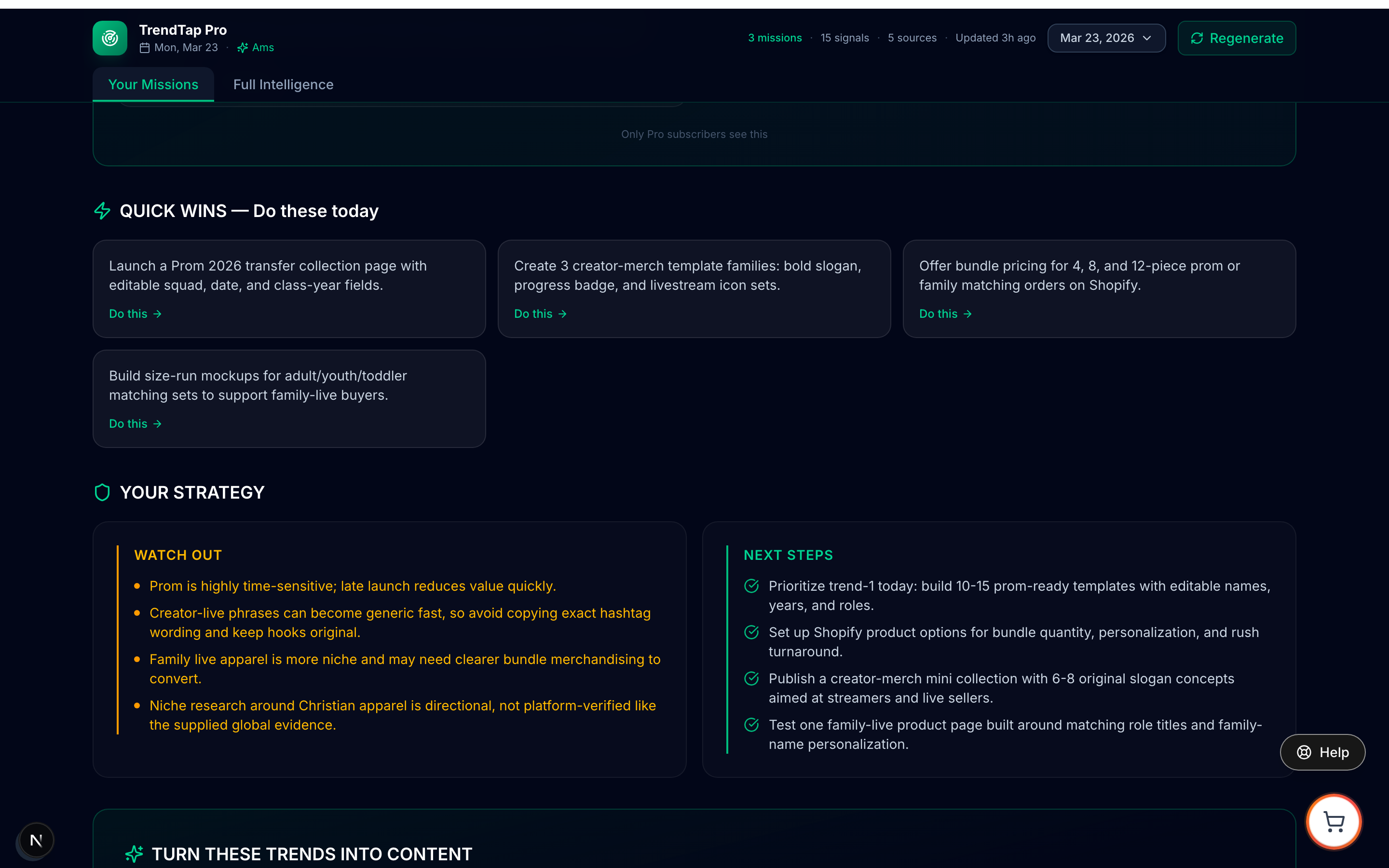
Quick wins are designed for speed. Click "Do this" and Operator takes over with the prompt pre-loaded.
Each quick win card shows a brief description and a "Do this" button. Clicking it sends the prompt directly to Operator.
Niche Radar (Pro only)
Niche Radar surfaces trend signals that are specific to your design niche — not just mainstream trends that everyone sees.
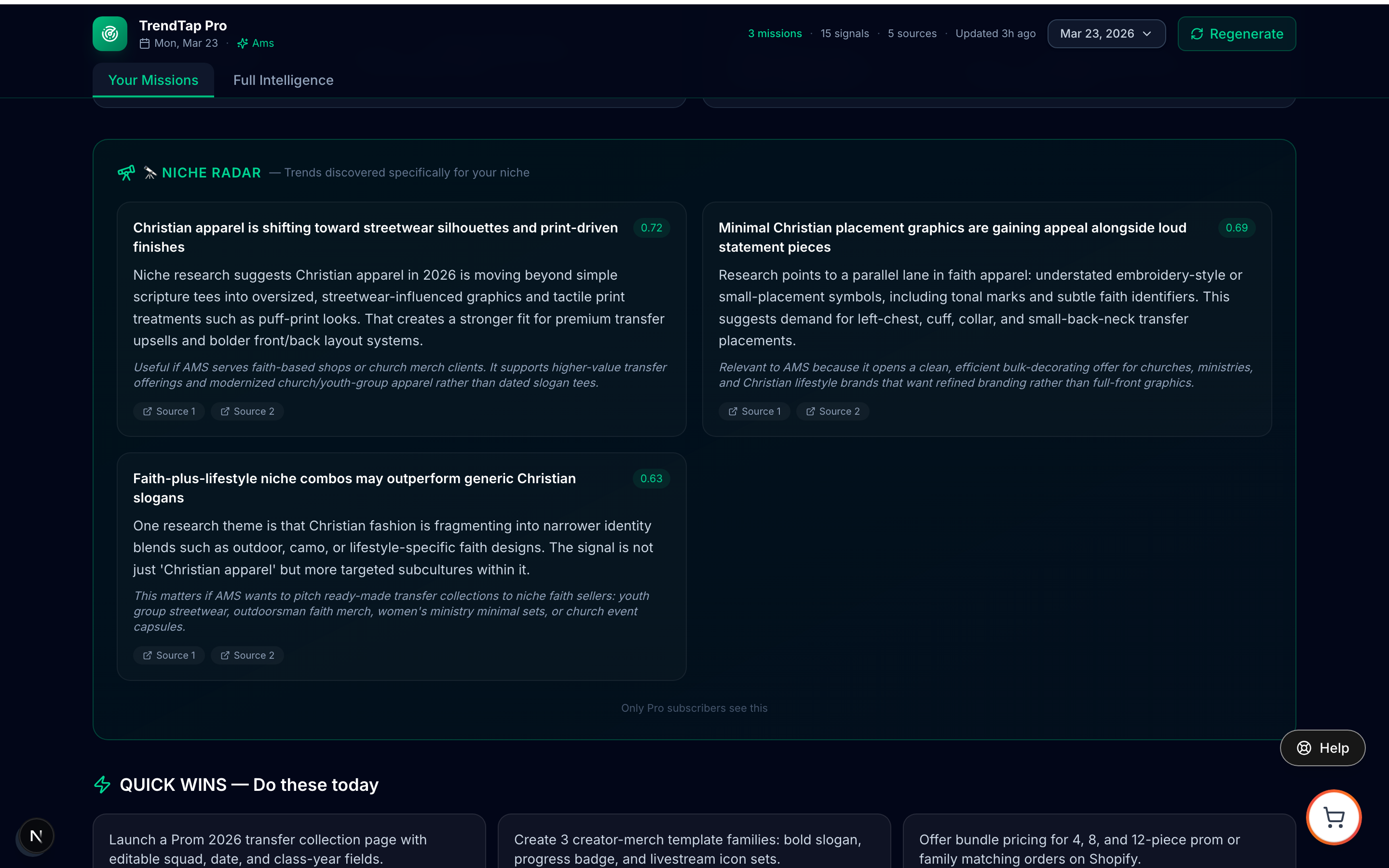
Niche Radar uses targeted web research to find trends in your specific niche. Each signal includes a relevance explanation and confidence score.
Each niche signal includes:
- Title — The niche trend name.
- Summary — What the trend is about.
- Relevance — Why this matters specifically for your brand.
- Confidence score — How strong the signal is (0.00–1.00).
- Source links — Up to three URLs where the signal was found.
Pro only: Niche Radar requires a Pro or Enterprise plan. It uses web research APIs to find signals that standard trend tools miss.
Strategy Panel
The strategy panel provides two types of guidance:
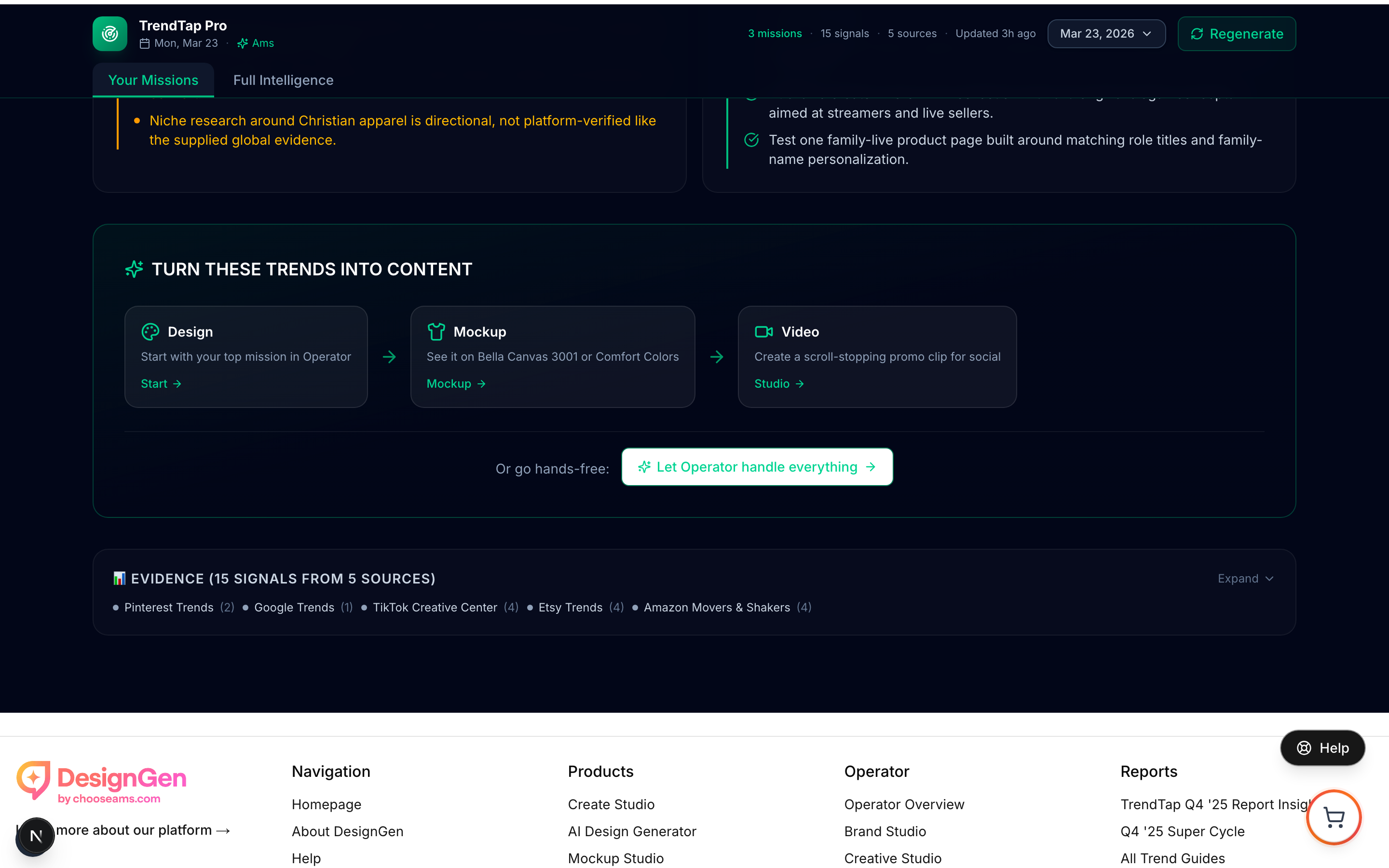
The strategy panel gives you the context to act wisely — not just what to do, but what to avoid.
- Watchouts (amber) — Risks or saturated trends to be cautious about. These help you avoid wasting time on opportunities that look good but have hidden downsides.
- Next Steps (green) — Concrete actions to take based on today's brief. These go beyond the missions themselves to suggest broader strategic moves.
Workflow Launcher
At the bottom of the Missions tab, the Workflow Launcher provides a guided three-step pipeline:
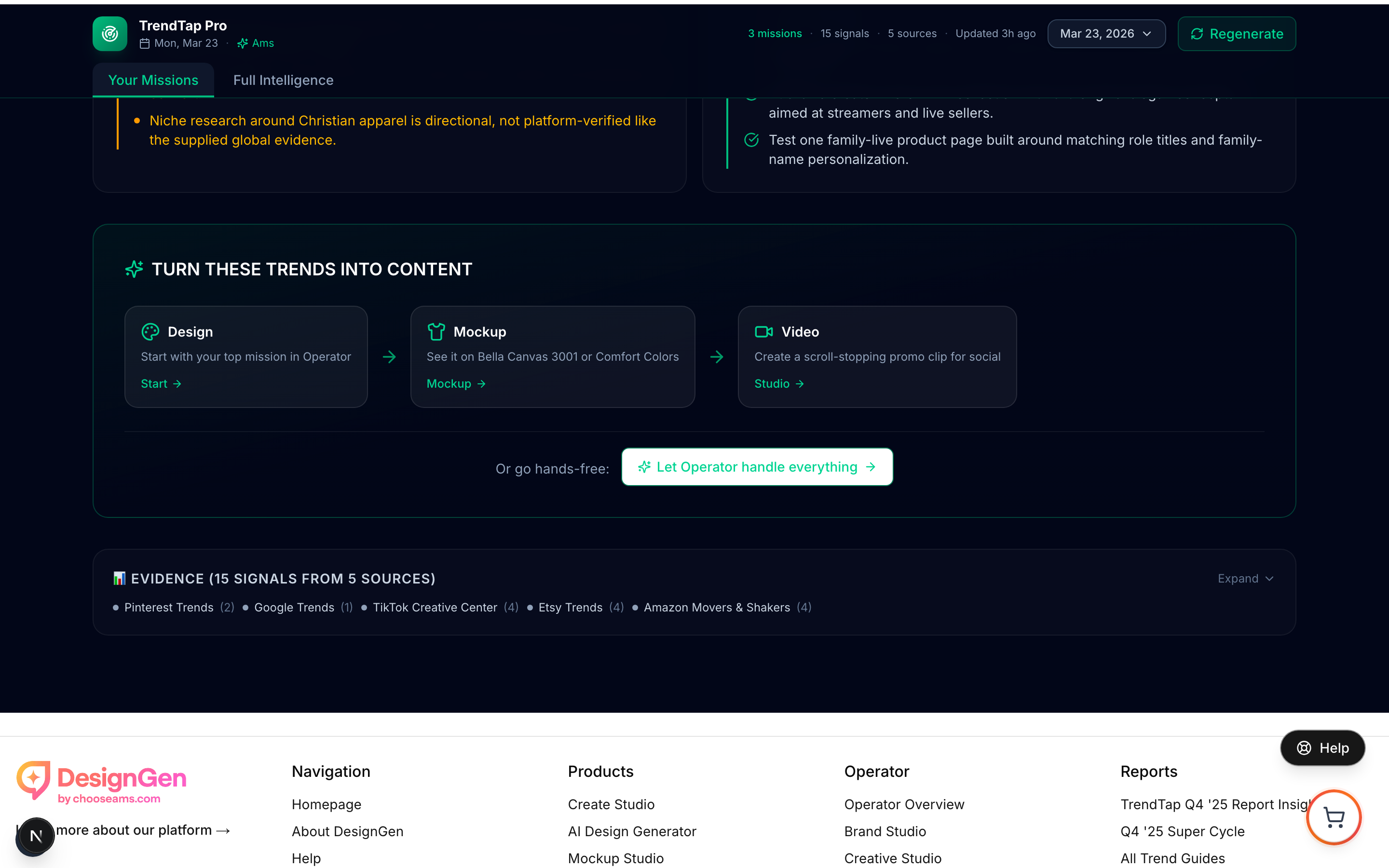
The Workflow Launcher connects TrendTap to the rest of DesignGen. Follow the arrows from left to right.
- Design — Opens Operator with your top mission's design direction pre-loaded.
- Mockup — Opens Mockup Studio to place your design on product blanks (Bella Canvas 3001, Comfort Colors, etc.).
- Video — Opens Creative Studio to generate a scroll-stopping social video from your mockup.
There is also a "Let Operator handle everything" button that runs the entire pipeline in hands-free mode. Operator will design, generate mockups, and suggest video angles automatically.
Example: Acting on your top mission in under 3 minutes
Your daily brief lands with a hero mission: "Y2K Butterfly Revival" with a fit score of 87.
- You read the design direction: "Iridescent butterfly motif with chrome accents and early-2000s typography on dark backgrounds."
- You click the "Oversized tee" product idea pill.
- Operator starts generating immediately in auto mode.
- Within 90 seconds, you have three design variants.
- You favorite the best one and click "Mockup" in the workflow launcher.
- Total time: under 3 minutes from brief to mockup.
Troubleshooting
| Issue | Cause | Fix |
|---|---|---|
| I do not see any missions | Free plan or no brand set up | Upgrade to Pro, or set up a brand in Brand Studio so TrendTap can personalize. |
| Fit scores seem wrong | Incomplete brand profile | Add more style tags, subjects, and designs to your brand. More data = better scores. |
| Niche Radar is empty | New account or niche research unavailable | Give TrendTap a few days to learn your niche. Niche Radar needs web research data. |
| Missions are the same as yesterday | Pipeline has not run yet | Briefs refresh daily around 5 AM UTC. Check back later or click Regenerate. |
| Product idea pills do nothing | Browser popup blocker | Allow popups for DesignGen, or click the pill again. |